I’ve made a couple updates to the Autodesk Fabrication script libraries. If you use them, you can download updated versions from here.
Scripts Updated
Debug
Debug ITEM Library.cod
Debug ITEM Sealant.cod
Job Items
WriteAllLibrary (Job).cod
WriteAllSealant (Job).cod
WriteAll_Props (Job).cod
Library Items
WriteAllLibraries (Library).cod
WriteAllSealant (Library).cod
WriteAll_Props (Library).cod
Issues Corrected
Issue 1: Scripts accessing the “Library” property were failing on CID/Pattern 2199. Scripts have been updated to watch for this and report it as an ‘Unknown‘ Library.
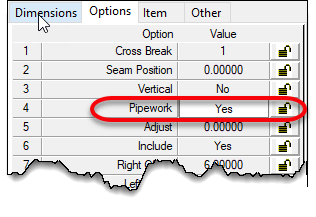
Issue 2: Some CID/Patterns can be configured to be pipework or duct work depending on the “Pipework” option’s “Yes/No” status. Scripts were updated to properly report or ignore this property depending on the Sealant value being present.
If the option is set to “Yes“, the pattern is a pipework item. If set to “No”, the pattern is a sheet metal item. Sheet metal items contain the “Sealant” property where as Pipework items do not.
This condition is present in the following CID/Patterns…
149
838
902
1101
1238
1239
1240
1241
1242
1247
1248
Special thanks to Kyle Speropoulos of MMC Contractors in Kansas City for alerting me to this issue.
Back in the day, I briefly worked for an Autodesk reseller. This particular reseller was classified as an “Education Reseller”. In short, this meant they were one of a few resellers that sold Autodesk products into the educational market (high schools, universities etc.).
As you can imagine, a school would likely have most of not all the products. Back then, Autodesk provided a complete list of all the products and their recommended install order. Fast forward to today, they’ve either gotten incredibly lazy or in all their massive layoffs over the years, the domain knowledge is gone. I suspect both.
Autodesk’s Recommendation
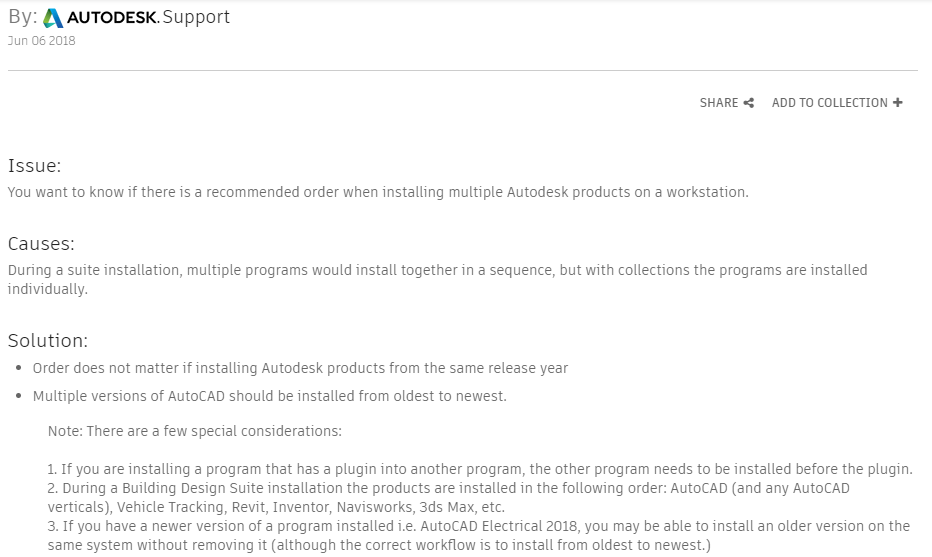
Take a look at Autodesk’s current recommended install order from this link. which was last updated 6/6/2018 at the time of this writing. In the event the link changes, here’s what they say…
What’s wrong is that they tell you within the same product year, the install order doesn’t matter. This is outright false for many reasons. They try to note a couple “exceptions” stating that if there’s any add-ins, the base product should be installed first. But which products have add-ins to what other products?
CADmep is obviously running on top of AutoCAD so AutoCAD should be installed first. That seems obvious. But Navis also installs Exporters depending which products it finds and it doesn’t always show up in an Add-ins tab. So this is less obvious. Buy there’s also other dependencies that are even more obscure. Should you install Revit or Inventor? Should either go before or after 3ds Max? This is less obvious to most users.
This is really why someone would ask that question. It’s a real dis-service then to start out telling them it doesn’t matter. In fact, it matters most of the time, and it doesn’t matter as the “Special consideration”.
Determining The Real Install Order
There’s a few ways to handle this. If you’ve been around a while and had one of the old “Design Suites”, install in the same order as the Design Suite did. But note that this did change between product years and types of Suites. Plant Deign Suite 2013 for instance installed Autodesk before Revit where as Building Design Suite 2016 installed Revit before AutoCAD.
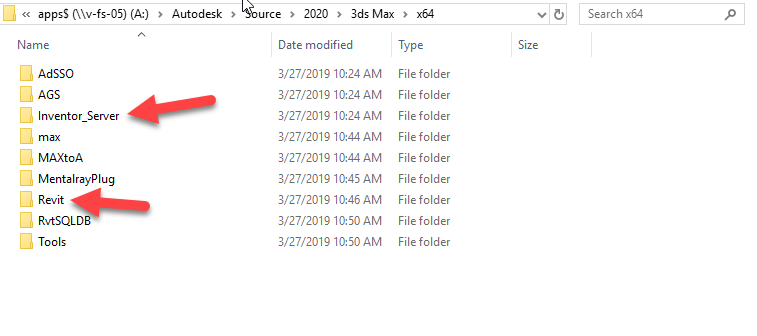
One of the other ways is to look at the install media folders to see if you can find any dependencies. Take for example 3ds Max. Look in the x86 or x64 folders and you’ll see references to Revit and Inventor.
This means we should install Revit and Inventor before installing 3ds Max. But what if we’re using both Inventor and Revit? Which of those goes first?
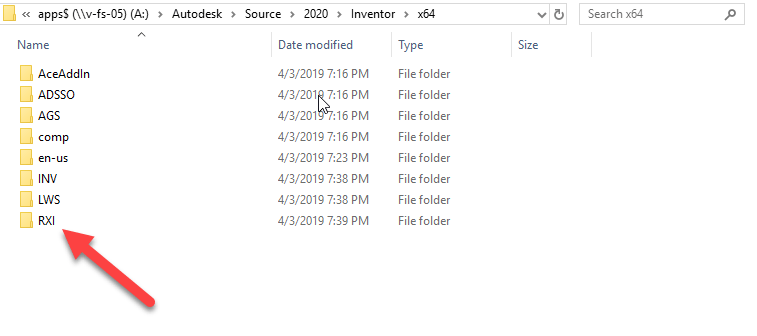
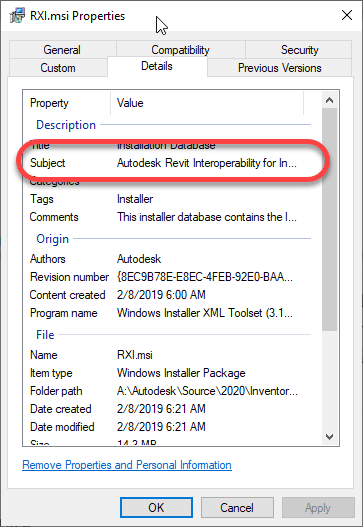
You’ll see the RXI folder in the install files. Hard to tell what it is. When you drill into the folder, there’s just a single MSI. If you right-click on it and select Properties and do to the Details tab, you can see it’s Revit Interoperability for Revit. Other folders deeper in the structure also confirm this by their naming,
Based on this findings, it suggests installing Revit first so Inventor can see it and install the Interoperability tools.
Here’s My Order
So, if you’re an Autodesk Fabrication user, here’s what I typically do (and why)….
Revit(doesn’t seem to depend on anything else)
AutoCAD(I can’t find a dependency for AutoCAD. But anything with an Object Enabler will want it here and it’s a core product so as a matter of safety, I install it early just in case)
AutoCAD based Verticals like MEP, Arch, etc.(These use AutoCAD as its core. I’ve not checked dependencies between verticals but it’s likely safe to install them in any order. I usually do Arch first if I’m going to include it as MEP is built on top of Arch but it’s really not needed as MEP installs what it needs)
Inventor(because of the Revit dependency covered earlier)
3ds Max (because of the Revit/Inventor dependencies)
Navis – Freedom/Simulate/Manage(Navis exporters only install for products already installed so we install this toward the end)
Fabrication CADmep(allows CADmep Object Enablers to install for Acad, Navis, etc.)
Fabrication – EST/CAM/etc.(order doesn’t matter)
If there’s anything on the list you don’t use, just skip it. If you happen to install Navis before some of the dependent products, just use “Add/Remove Programs” in Windows Control Panel to modify the install to include new exporters or download the Exporter installs separately from Autodesk’s web site.
Resource information for Autodesk Fabrication has been updated. They now include information on the 2020 version of CADmep, ESTmep and CAMduct. In short, nothing has changed.
The FabViewer Command Reference did have one new command added. However, this was not new to the 2020 version. The CADmep 2019.1 update added a command which was missed previously.
Don’t use Ancillaries with Breakpoints inside an Ancillary Kit.
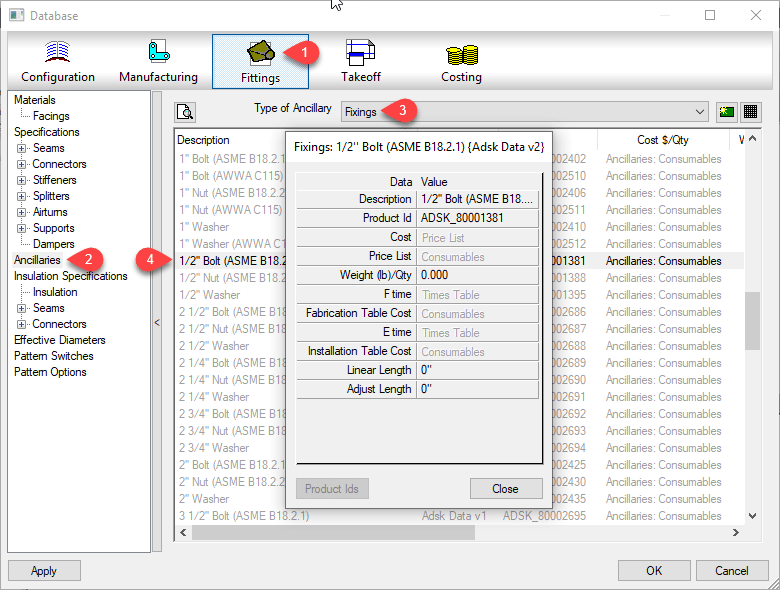
Ancillaries are virtual items you can add to your Fabrication configuration. ESTmep users use Ancillaries to help quantify cost and labor. Material quantification for purchasing and/or fabrication is another use for Ancillaries. These are virtual items because they typically don’t affect modeling or coordination. They aren’t even typically drawn yet they are critical to your fabrication as a purchased, fabricated or installed item.
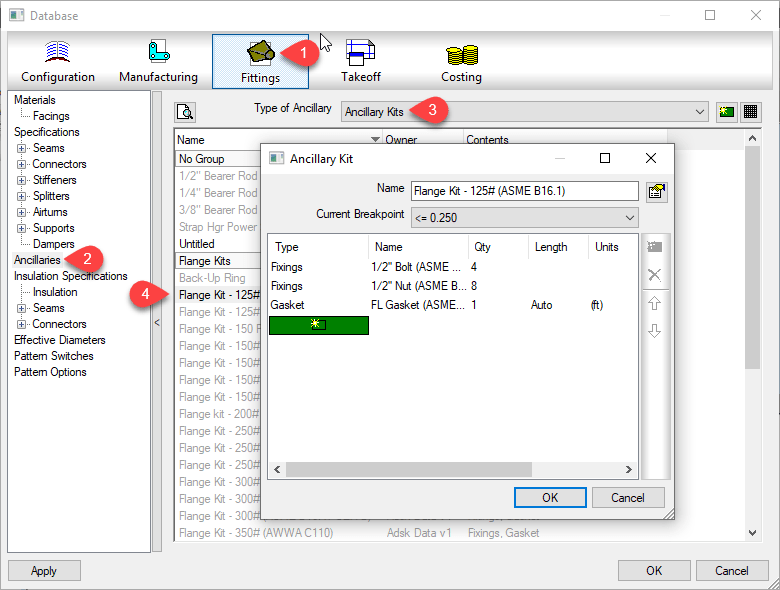
Database view of an Ancillary entry
At times, you many need multiple Ancillaries associated with an item. However the fabrication software typically only allows you to assign a single ancillary to an item or database entry like a connector. For this reason, Autodesk Fabrication includes a type of entry called an “Ancillary Kit” in which you place multiple Ancillaries.
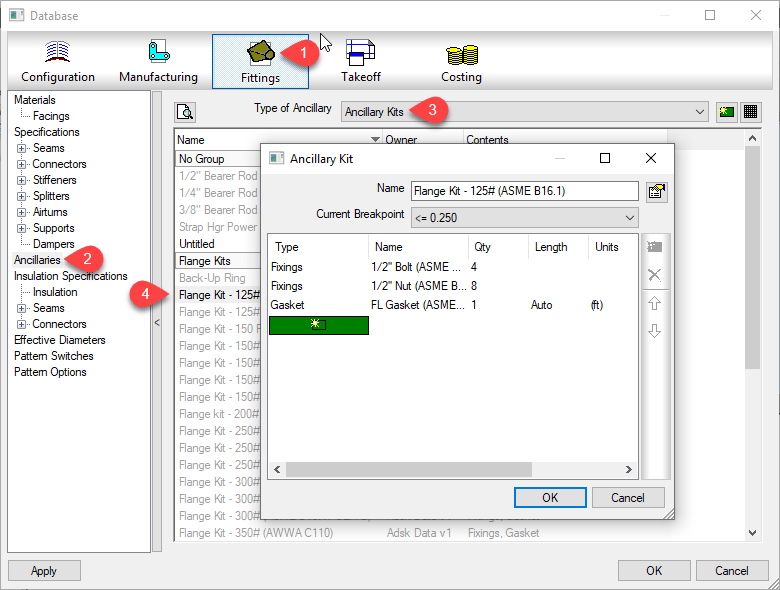
These Ancillary Kits are where you can group multiple Ancillaries that are often used together. A Bolt, Nut and Washers are a good example of an Ancillary Kit.
Database view of an Ancillary Kit entry
Ancillary / Kit Breakpoints
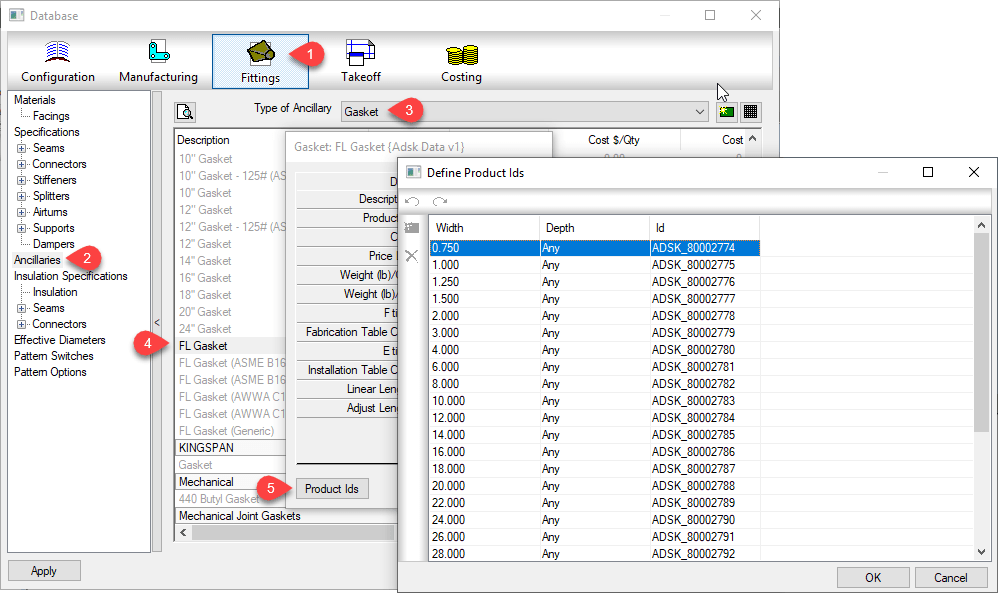
Often, Ancillary items are defined by the size of the item they are associated with. As an example, a flange gasket would be different depending on the type and size of flange it’s used with. You can configure an Ancillary to have Breakpoints to reference a different parts depending on the size of the item the Ancillary is associated with.
Database view of an Ancillary with Breakpoints
Just like Ancillariess, an Ancillary Kit can also have Breakpoints. Using a flange as our example again, depending on the type and size of a flange, or what it’s connecting to (another flange, valve, pump) it can have different bolt/nut sizes and quantities. You would manage this using an Ancillary Kit with Breakpoints.
Database view of an Ancillary Kit with Breakpoints
Nested Breakpoints
If you watched the example images closely, you can see Autodesk’s own database breaks this Best Practice rule. The rule is to never add Ancillaries that use Breakpoints to an Ancillary Kit. Here’s how to keep that straight…
Yes – Ancillary in Ancillary Kit
No – Ancillary w/Breakpoints in Ancillary Kit
Yes – Ancillary in Ancillary Kit with breakpoints
No – Ancillary w/Breakpoints in Ancillary Kit w/Breakpoints
I’ve not tested Autodesk’s configuration for reporting accuracy. I have enough work managing my own fabrication configuration. However I did create a sample of my own and submitted to Autodesk support. After demonstrating inconsistent results with my sample, their recommended guidance was not to use Ancillaries with Breakpoints in an Ancillary Kit.
Based on testing in other data sets, I would say this is sound advice. Even if you can get it to work, the setup and configuration is less intuitive and confusing. Your Ancillary Kit can reference different Ancillary types using different Breakpoint criteria. The Ancillary Kit could also have conflicting Breakpoint criteria (e.g. Length x Width vs Diameter) compared to the Ancillary.
Keeping this Best Practice can create more Ancillary entries as well as make building Ancillary Kits a little more time consuming. But the results will be more predictable and what’s really happening in your configuration will be more obvious and less obscure. Even where Breakpointed Ancillaries do function within an Ancillary Kit, it’s advised to avoid this where possible.
If you use network licenses or create network deployments of CADmep, CAMduct or ESTmep you may encounter errors. Autodesk incorrectly pathed the Network License Manager files in the SETUP.INI files.
Even if you are using Stand Alone or User Based Subscription licenses but build Network Deployments, if you configure the deployment to include all components in the deployment (recommended if you plan on modifying the deployment later) you can encounter errors.
To correct the errors, you can replace the SETUP.INI files that are part of the installation with the ones provided in the following ZIP file…
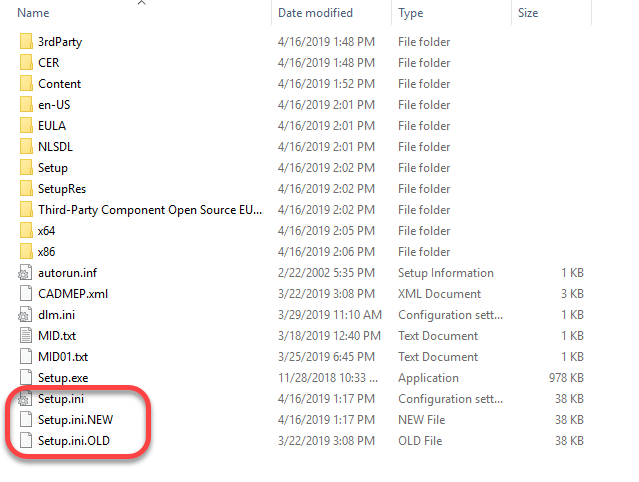
Before you overwrite your installation’s SETUP.INI file, it’s a good idea to backup the original. The root of my installation folder looks like this…
At some point, I would expect Autodesk will update their download data and provide the proper files. Because of this, I would highly recommend NOT replacing the SETUP.INI files unless you encounter issues.
What’s Different?
If you’re curious what’s different between the two, you can open the INI files in Notepad or other text editor and view them there.
The original file contains this at the end of one of the entries…
Third-Party Component Open Source EULAs:x64\en-US\Tools\NLM.msi
The new SETUP.INI files have updated it to this…
Third-Party Component Open Source EULAs:x86\AdskLicensing\NLM\x64\NLM.msi
Here’s another simple Attacher tip for Fabrication products. If you hold down the Shift key while clicking on the Attacher arrow in CADmep, ESTmep or CAMduct,. the arrow rotates the opposite direction.
Clickingthe Attacher – Notice it Rotates in the “Clockwise” Direction Clickingthe Attacher – Notice it Rotates in the “Counter-Clockwise” Direction
Over the years, I’ve written a number of scripts helpful for managing an Autodesk Fabrication configuration. I’ve given them away in my Autodesk University session I’ve taught so they’ve circulated around a bit.
I’ve rewritten most, streamlined them, made enhancements, added others, etc, etc. Because I’m always updating and changing them, I thought I’d host them here too. I can then just post when I update them.
There’s are 2 sets of scripts covering the following topics…
Debugging Properties Scripts
Job Item Scripts
Library Item Scripts
One set is for use in 2019.0 and earlier versions (but work in any version), the others are designed for 2019.1 and later when Autodesk added support for the Pattern Number property.
You can get to the scripts from the menu or click here. The scripts are free to use for all except employees of ENGworks or anyone working on the behalf of ENGworks. (contractors, consultants, etc.) who are prohibited from use.
After a very brief appearance toward the end of October, the Fabrication updates for 2018.3 and 2019.1 are back on line as of today.
Unlike previously speculated, they were not removed due to issues. They were intended to be released later but were inadvertently released early. If you happened to have them from their initial release, you don’t need to download the update again, the build numbers did not change. However, the PDF documentation of fixed issues on some of them did get more information listed in what was fixed. You can review all the issues addressed here…
On October 23 2018, Autodesk released Update 2019.1 and 2018.3 for all the Autodesk Fabrication products. Within a week, the updates have disappeared. This most often happens when a critical issue arises with the update. No word on what it may effect but when this has happened in the past, the issues were often significant.
I have not taken the time to uninstall and reinstall my Fabrication products as I don’t do production work. I would advise anyone that does production work to seriously consider this if they’ve already applied the updates.
So far with the limited Fabrication database administration I’ve done I haven’t noticed anything. I have tested nearly 1-1/2 dozen support issues I’ve logged over the last year and a half and only 1 was addressed. Many of my issues affected incorrect sheet metal pattern developments and require manual fixes each time.
If you’re interested in the issues that were suppose to be addressed, please refer to my Fabrication update page. Links are below. If past history holds true, the new updates will come out a month from now and be new versions which may not list the issues that were corrected.
I’ve been asked from time to time, which Autodesk Fabrication Patterns (CID’s) support exporting points for field layout. If you want to use Trimble, Topcon or similar hardware for field layout like hanger inserts for MEP, these points are important.
So, with this post, we’ll show you that information but also hope to accomplish something else in the process. I’ll walk you through a couple ways to do it, one significantly better than the other. It’s not really important that you know how to do this same process again, once you have the information, you’ll likely save it somewhere. However, knowing how to do this process will hopefully give you ideas about techniques you can use for other types of data mining and extraction. It’s not hard after all, you just need to get creative with few things you already likely know how to do.
If you’d rather just get to the data, scroll to the end of this post and you’ll find the list of pattern numbers. Otherwise, follow along and at the same time, explore some options for learning how to get this type of data yourself.
Step 1 – Get a copy of Every CID
The MAKEPAT command in Fabrication is how we create new ITM’s based on a particular CID. Most people working with Fabrication for a while know that. What they may not know is that you don’t have to randomly type patter numbers and run the command hundreds of times. CAMduct can do them all at once. If you don’ have CAMduct, install a trail version which you can download from Autodesk’s web site.
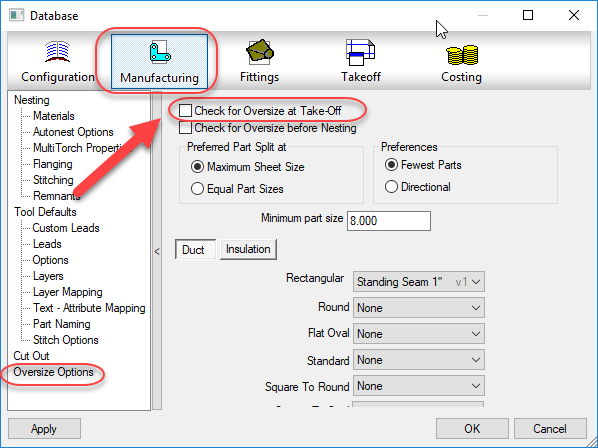
After starting CAMduct with a new project, the first step is to turn off prompting for Oversize which would keep prompting you on some large sheet metal patterns that exceed the material size. We turn this off to make the process run without pausing for user input.
Turn OFF Oversize Checking
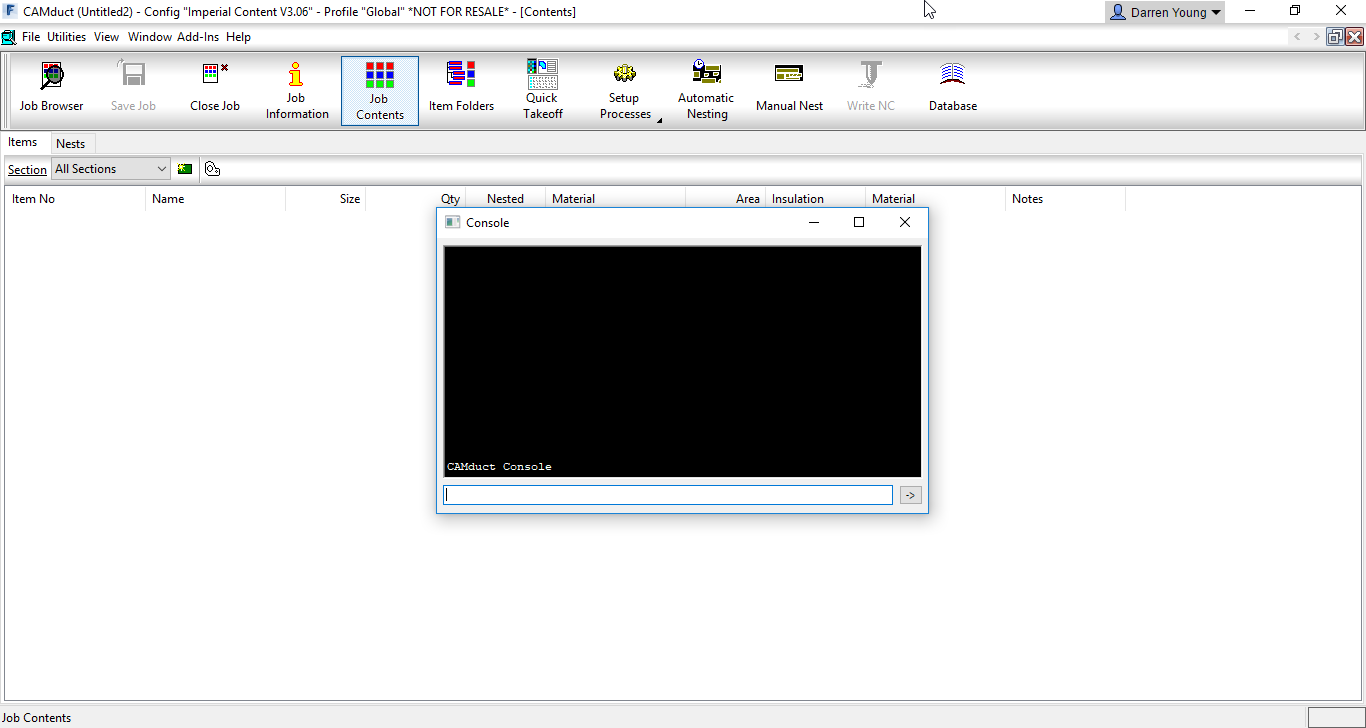
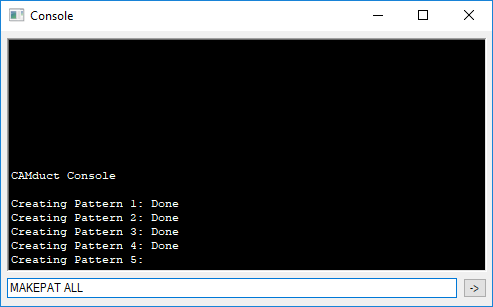
The next step is to display CAMduct’s Command Window screen by pressing “CTRL-SHIFT-C“.
Pressing “CTRL-SHIFT-C” on the Keyboard Displays the Command Window.
Next, in the Command Window, type the command “MAKEPAT ALL” and press <Enter>. (Note that the Command Window is also part of ESTmep but the MAKEPAT ALL function is not supported in ESTmep, only CAMduct.)
“MAKEPAT ALL” will Create One of Each Pattern
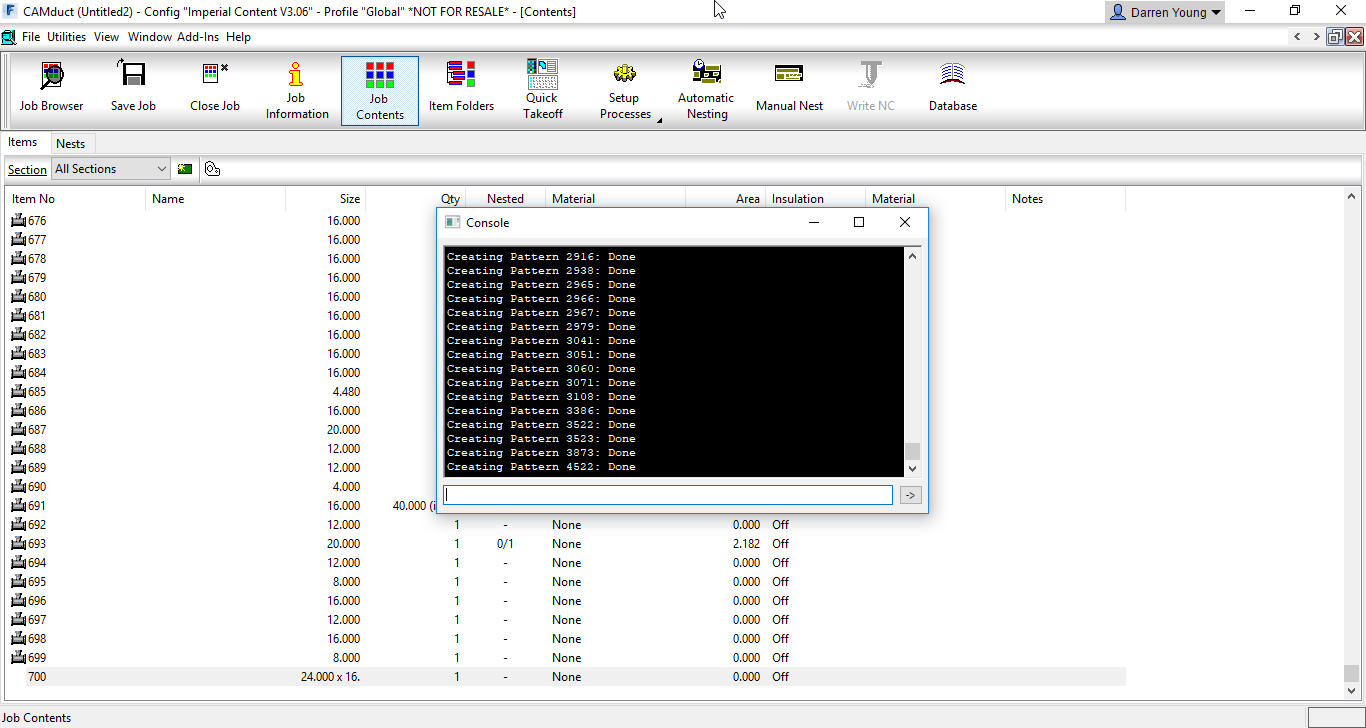
Depending on the speed and resources of your computer or even other running processes, this can appear as if it’s locked up CAMduct at times. However, be patient and let it sit. Unless the software crashes, the process will complete. I’ve seen cases where it can take over 10 minutes or more.
When complete, there is no prompt. You’ll just notice the cursor back in the Command Window’s typing area. The last pattern should be CID 4522. You’ll also see the Job Contents will contain each pattern that was successfully taken off. These patterns exist only in this job, not in your database so you’ll want to save this job in CAMduct’s MAJ file format for future reference. If you like, you can download my copy here.
All Successful and Supported CID’s Are Now in One MAJ.
Step 2 – Examine Patterns
Now that we have a file with all the patterns, we can examine them. There’s a lot, and doing each one individually will take a lot of time. If you’ve ever been to one of my Autodesk University sessions, you’ll know that I frequently supply a lot of Fabrication COD scripts. This is where they can come in handy. You can download them here.
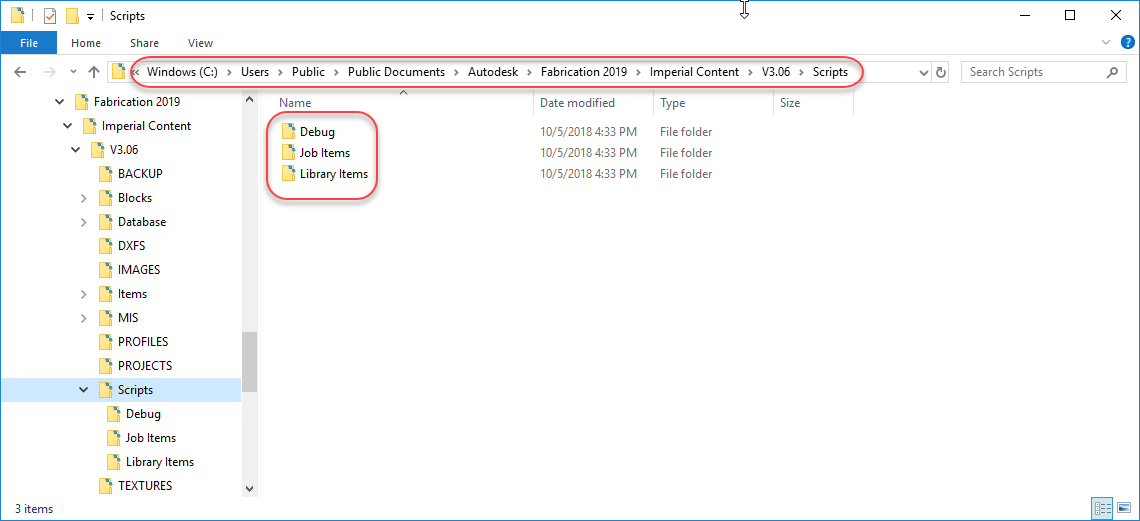
I typically place my COD scripts under the Scripts folder in my Fabrication Configuration like so…
Scripts Extracted to the Configuration’s “Scripts” Folder
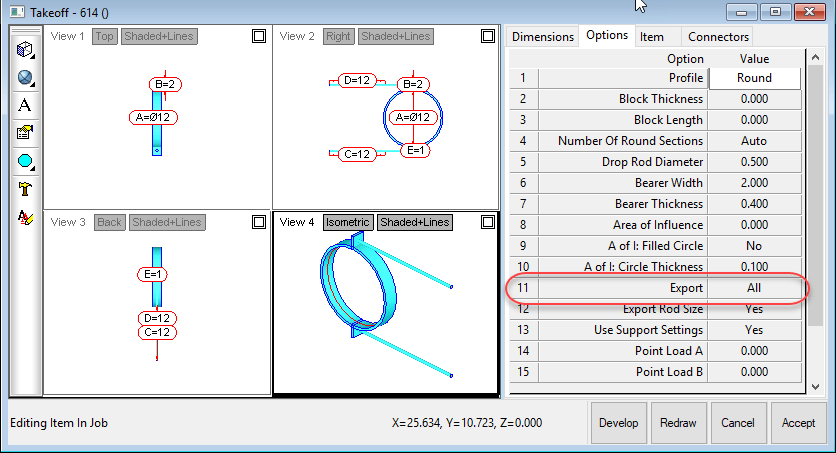
If you look at a Hanger CID (1249 for example) you’ll see in it’s Options tab that there’s an “Export” option that tells CADmep if it should export field layout points or not.
The “Export” Option Controls Field Layout Point Exports
We’ll use this to determine which CID’s export points which is where the scripts come in. For this example, we’ll be using the following script…
.\Scripts\Job Items\WriteAllOptions (Job).cod
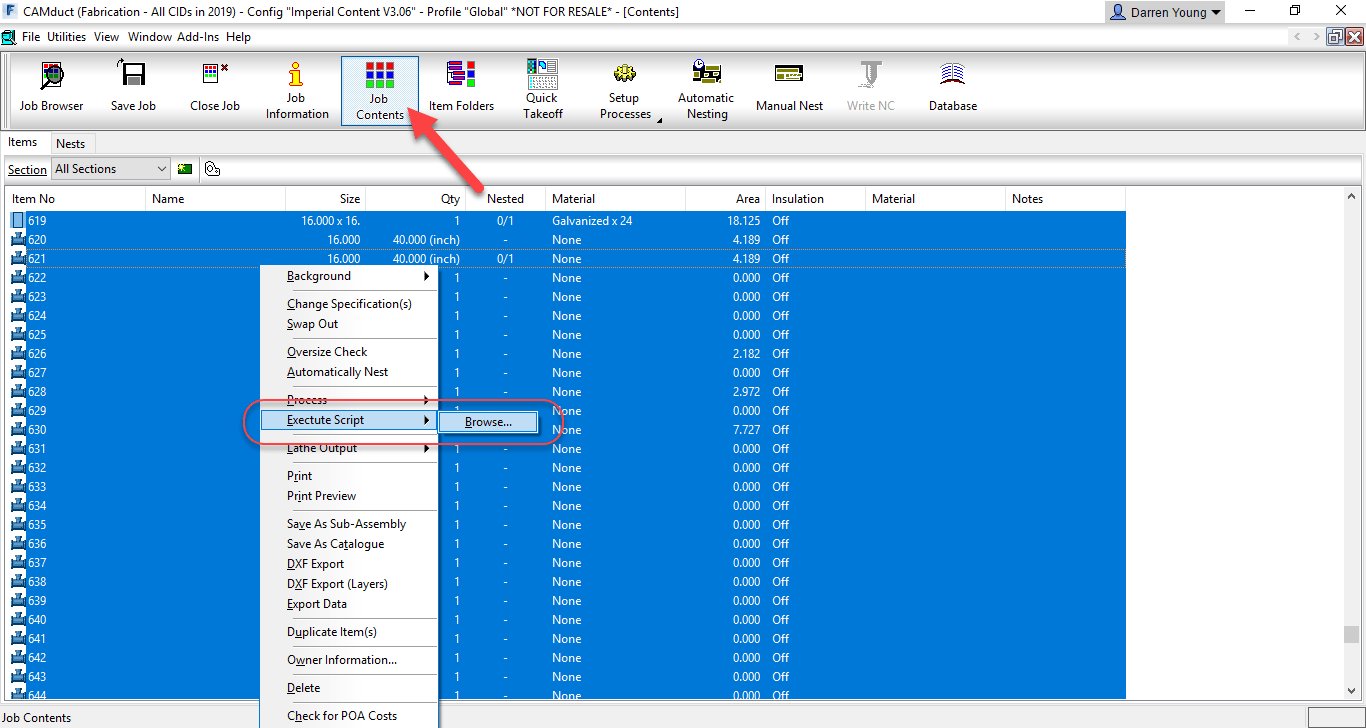
This script will write all the Options for all the item in the CAMduct Job. To do this, click the Job Contents button on the ribbon, select all the items in the job, Right-Click and select the Execute Script option then browse to the above referenced COD script.
Use “Execute Script” to Run a COD Script on All Selected Items
After the script completes, it’ll have written to a text file all the options and their values for each of the items in the job along with their CID. You can find the file located in the root of your fabrication configuration’s Items folder. This is the file you’ll be looking for…
.\Items\WriteDWGOptions.Txt
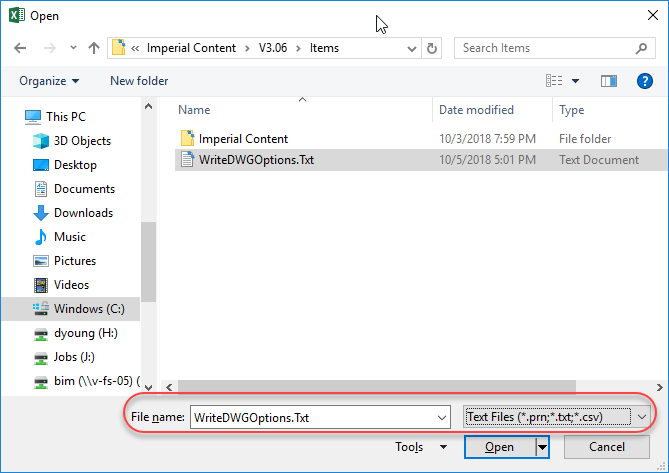
Using Microsoft Excel, open the text file. Make sure you change the file extension to Text Files so Excel displays the file you created.
Change Excel’s File Type to “Text Files (*.prn;*txt;*.csv)“
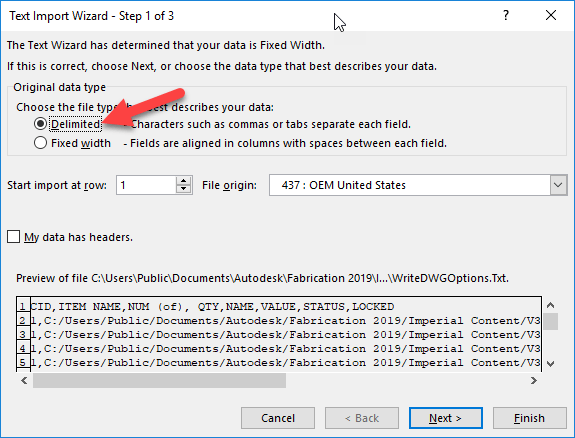
This will bring up Excel’s Text Import Wizard. Select the “Delimited” radio button and click Next.
Use “Delimited” as the Import Option in Excel
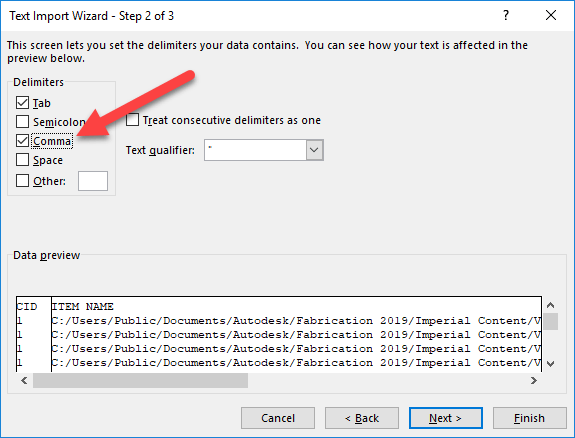
In the next screen of the Wizard, you’ll select the “Comma” toggle as one of the delimiters and then click the Next button.
Use the “Comma” Option as the Delimiter
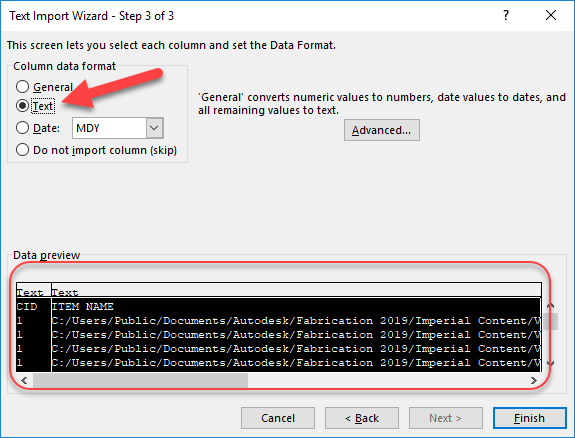
In the next wizard page, you’ll highlight all the columns in the bottom portion and select the “Text” radio button to tell Excel to treat all the columns as text. From there, click the Finish button.
Change All Columns to “Text” Data Format
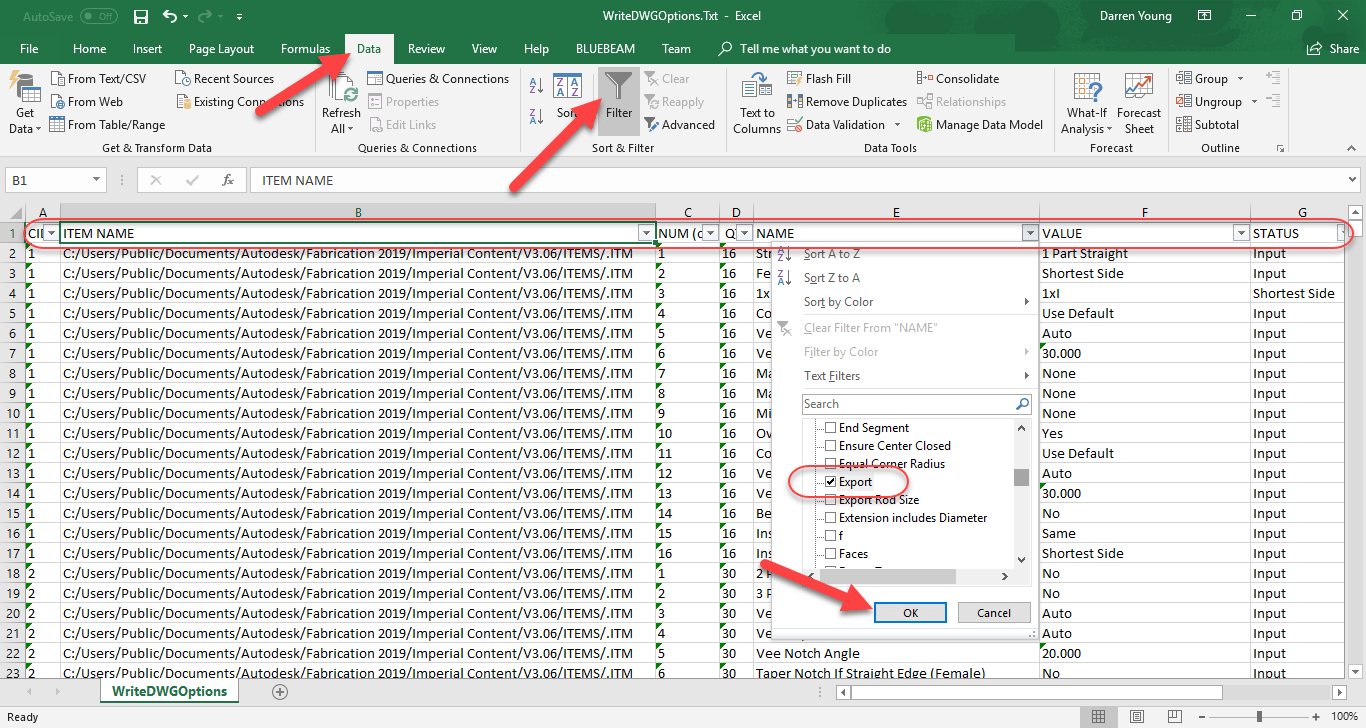
From here, Excel displays a line item for each option of each item in the job. You can now quickly filter this list by clicking the Data ribbon menu and selecting the Filter button. This adds a drop down arrow control in the first row of each column. “Column E” is the “Name” of the option. When you click the drop down arrow in that column, you see a list of all the values. Uncheck the top “(Select All)” option to deselect all the values and then scroll to the “Export” option and select it. This tells Excel to only display rows containing this text. From here, click the OK button.
Use AutoFilter to Display Only the Rows that Contain the “Export” Option
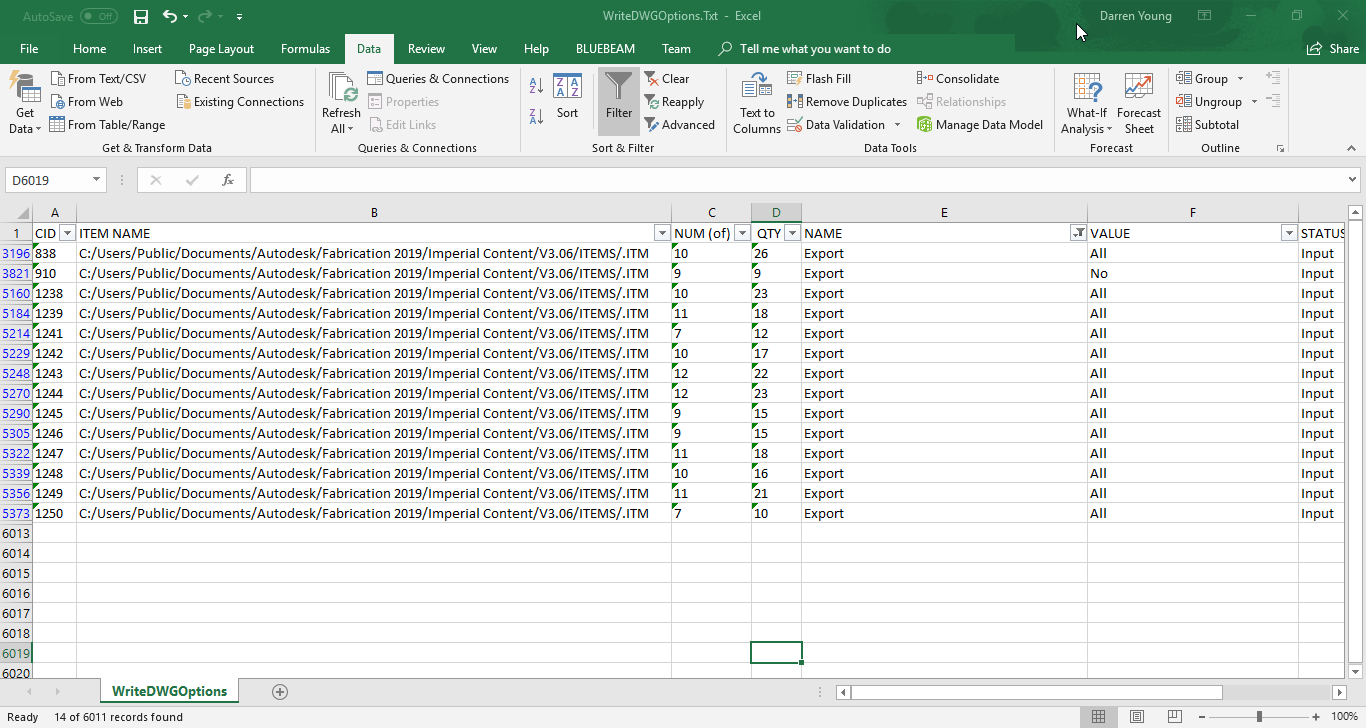
Once this is done, you’ll get a very short list in Excel. The left most column, “Column A“, is the CID or Pattern Number for each item in the job (we make one of each pattern) that has the Export option.
Excel Quickly Filters Options to Only Those With an “Export” Option.
So now we have a list of Pattern Numbers that you know will export points for field layout. You also learned how you can use some of the scripts I have to Export and mine data from your fabrication configuration. The question you have to ask now is, are we certain this data is correct?
Autodesk Fabrication allows you to rename Dimension and Option names. That would suggest that it’s possible to miss an option that was renamed to something other than Export. In this case, because we used CAMduct to create all the patterns from scratch, it’s most likely that it’ll have all the default names for it’s Options and Dimensions.
We’re still not in the clear however. It’s possible some patterns that support field layout points don’t have an Export option or have a similar option but name it something else. For this reason, we can’t be certain we know ALL the CID’s but we can be certain that we know SOME of them.
Step 3 – An Second (Better) Approach
How can we be certain we know ALL the CID’s that support field layout point exports? The simple answer is to export all of the items and see which have points.
To do this, we can use Fabrication CADmep. Start AutoCAD and load Fabrication CADmep. From here, if you saved the job you created in CAMduct as an MAJ file, you can use the “OpenJob” command in CADmep to import all those Items into CADmep.
CADmep will display all the items in the Fab Viewer before importing. Simply click the OK button to complete the import process.
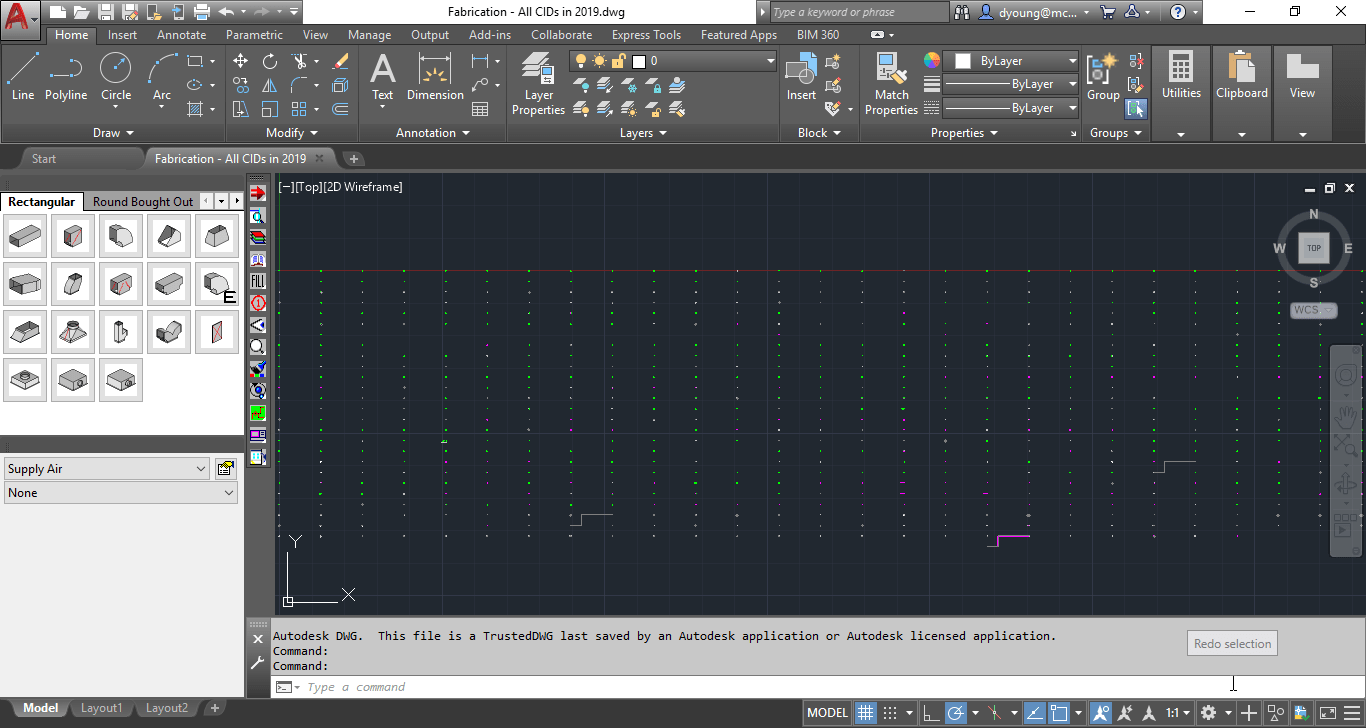
MAJ Imported into CADmep Displays Items in an Array
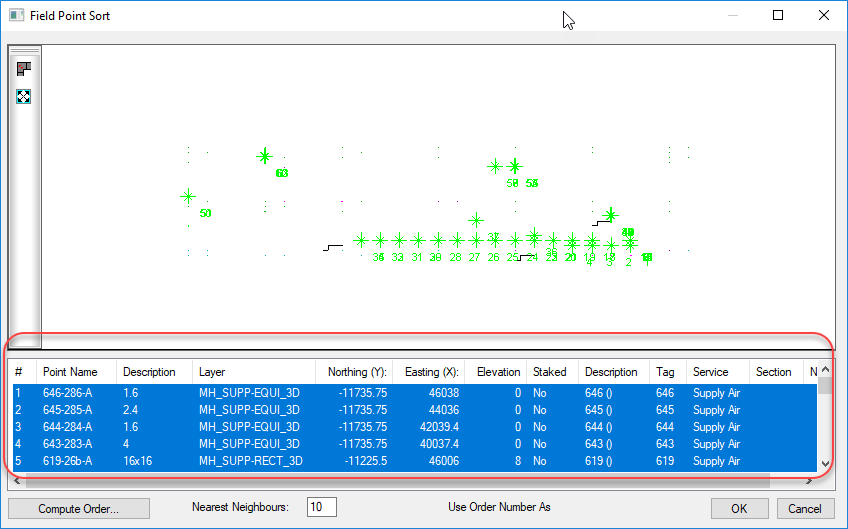
Once the MAJ is imported, CADmep will display all the Items in a large array. From here, we can use the “FPOINTE” command (previously the “TRIME” command) to export all the points. When the command asks you to select the points, type “ALL” at the select objects prompt. This will display the Field Point Sort dialog.
All Items Supporting Field Point Exports Will Appear in this Dialog.
Now we could finish exporting the points at this time but we’re not going to. This is because not all the information in this window actually gets exported. Specifically, the Tag column which displays the Item number (not the CID) and we need to know which Item number (which CAMduct sequentially numbered) to find the Item so we can check it’s CID later.
Instead, we’re going to select all the points in the bottom of the dialog, Right-Click and select “Copy” to copy the entries into the Windows Clipboard.
Without going into all the steps here, the next thing we naturally want to try is to Paste the items into Excel. If you go ahead and try it, you’ll likely notice that the coordinate fields are missing (that’s an interesting story with some history in itself) which isn’t a big deal for our purpose. But upon closer examination, you’ll also see that the columns aren’t lining up in Excel. Pasting this data into Excel is not going to work without a lot of fixing of data.
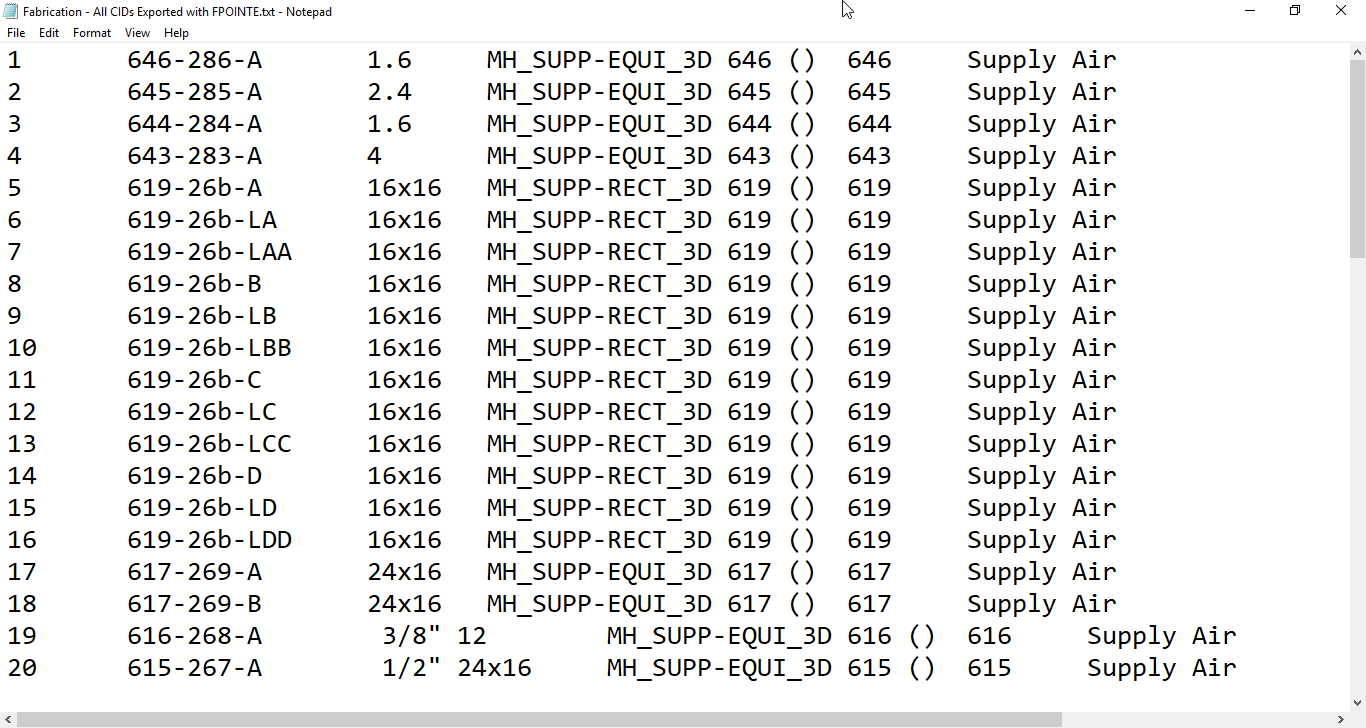
So the next thing I try, I paste the data into a blank Notepad file to see what it looks like there.
“FPOINTE” Data Pasted Into Notepad
Looking at the data in Notepad, you can easily see there’s columns. A little lower in the file you see the columns tend to shift, bit there’s definitely columns there. A little further experimentation using the cursor and keyboard arrow keys you can see the cursor jump between columns. This is a clear indication that columns are separated with Tab character. If your data doesn’t look like this, try looking at the Word Wrap setting in the Format pull down menu and turning it off.
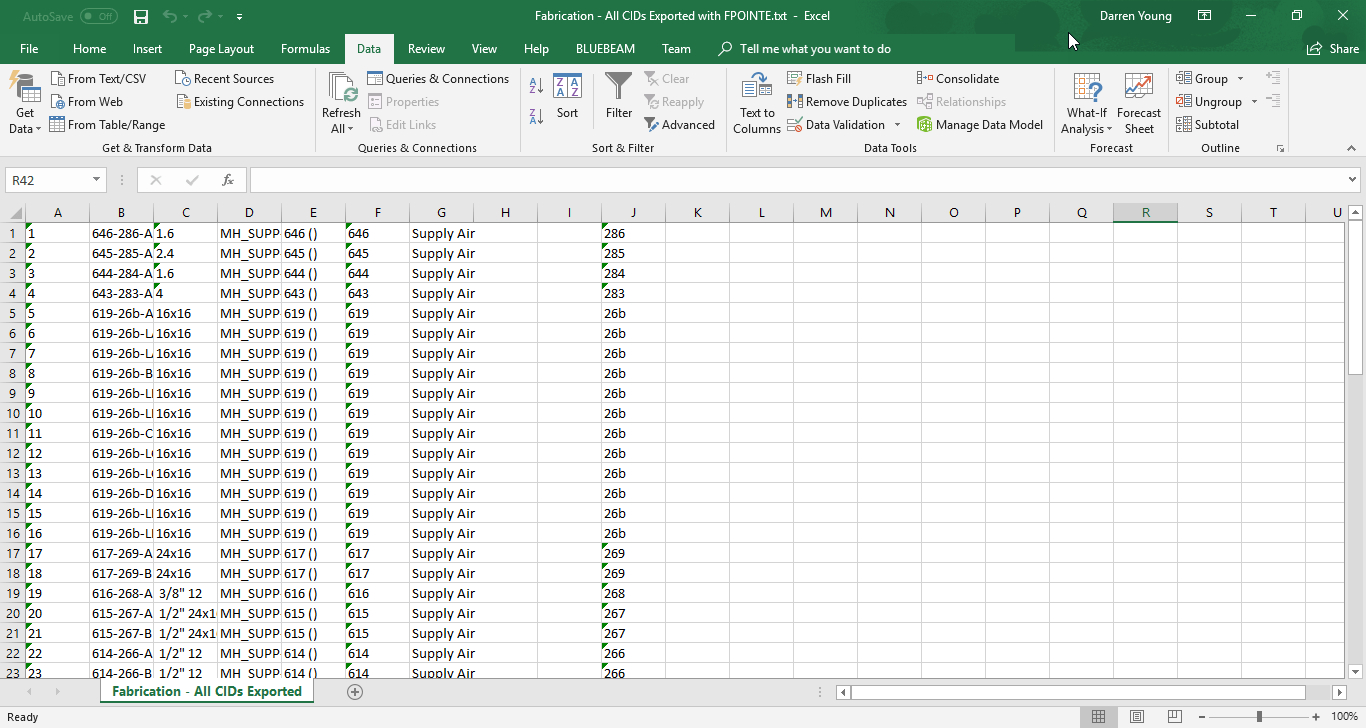
At this point, you should be guessing what’s next. Save the TXT file and open it in Excel like you did earlier. The only difference is that instead of selecting a comma as a delimiter, you want to make sure that Tab is selected as the delimiter, The resulting data in Excel should look like the following image…
“FPOINTE” Data Opened in Excel
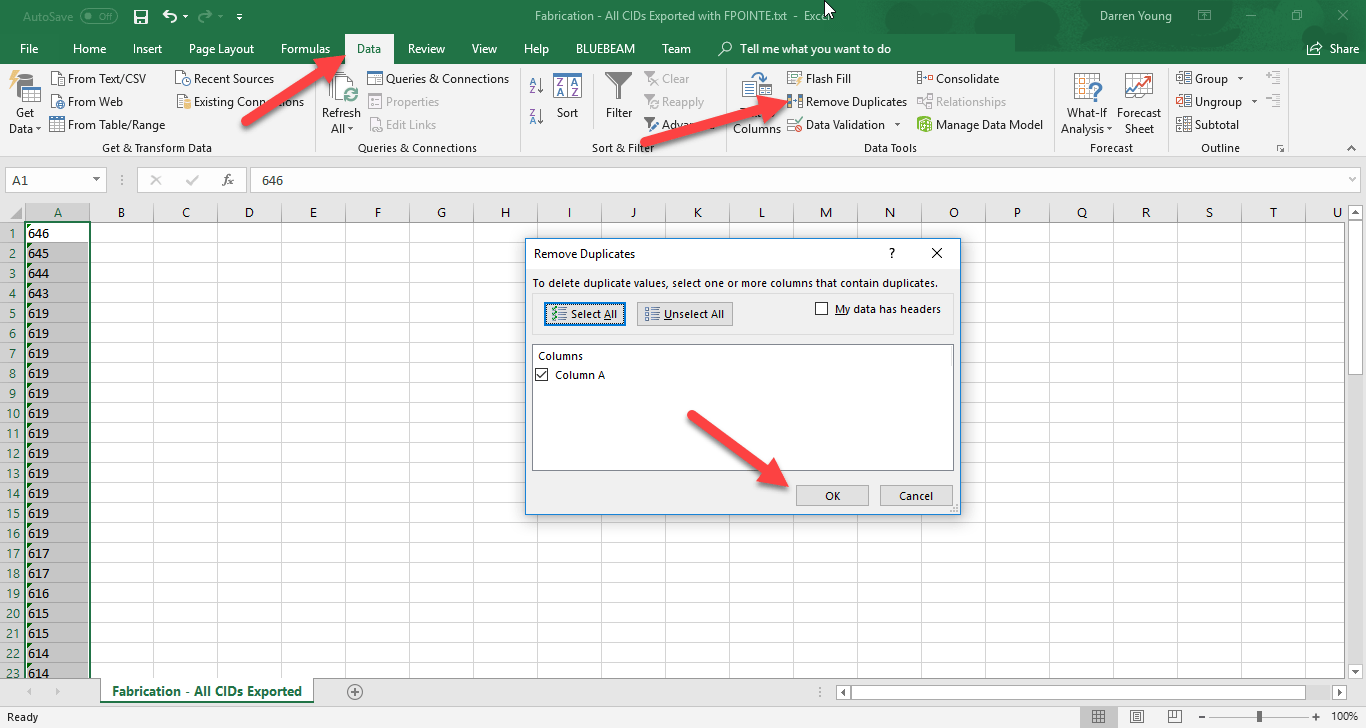
Lets keep in mind that some patterns export more than one point so there’s duplicates that aren’t needed. Additionally, we really don’t care about any of the exported data except for the Item Number which was in the Tag column in the Field Point Sort. This column is in Column F of Excel. For this reason, we’ll delete all the columns except for F. When you’re done, Column F will shift to Column A. From here, we can use Excel’s Remove Duplicates function on the Data ribbon to remove the duplicate Item Numbers.
Remove All Columns Except the One With the Tag Data and Run Remove Duplicates
When you’re done, you’ll have a nice short list of each pattern’s ItemNumber that was able to be exported. Note, this is the sequential Item Number that CAMduct assigned when creating the patterns. This is NOTthe CID or Pattern Number. Keep this Excel file opened for now, we’ll get back to it later.
At this point, it wouldn’t be too hard to look up each item number in CADmep or CAMduct and check it’s properties to find the Pattern Number of the item. But that can still take some time. We’ll go through another step to automatically look up the Item Number and show you the Pattern Number of the Item.
Step 4 – Using The Item Number to Find The Pattern Number (CID)
We need to somehow tie the Item Number to the CID or PatternNumber. To accomplish this, we’ll again turn to our scripts. All of my COD Scripts typically export the CID number. There’s also typically a script for each property. So we’ll be using the following script which will export the CID and Item Number of all the items in our drawing.
.\Scripts\Job Items\WriteAllNumbers (Job).cod
Type “ExecuteScript” in CADmep and browse to the above script file. At the Select Objects prompt, type “ALL” to select all the items in the drawing to run the script on. When the script is finished, it’ll export the data to the root of the Items folder like before. Open it just the same as you did prior making sure you use a Comma for a delimiter and change the column data types to Text.
.\Items\WriteDWGNumbers.Txt
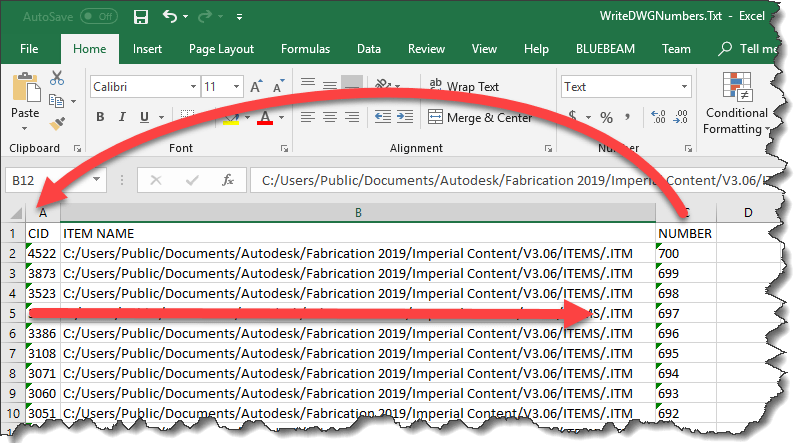
Once you open the Item Number export file, it’ll look like the following image. This is what we’ll use to cross reference the Item Numbers with their corresponding Pattern Number.
Item Numbers Exported from our Job
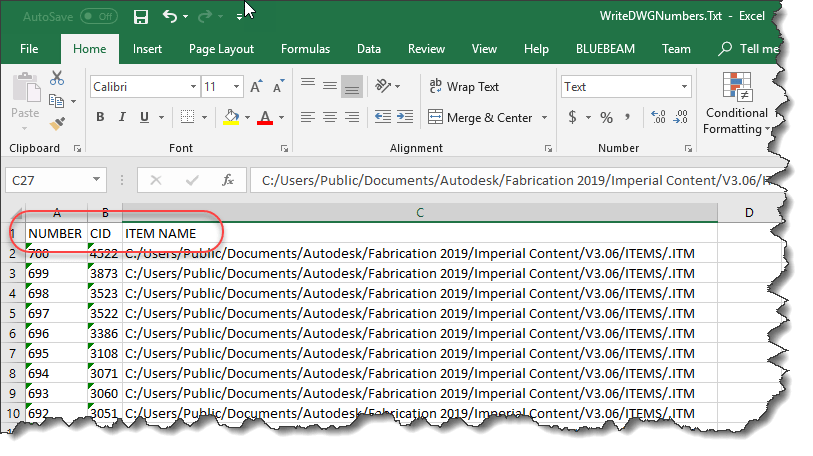
Because we need to look up the Item Number in Excel, we’ll want to move the Number column in front of the CID column. This is because the function that we’re going to use in Excel needs the number it’s looking up in the first column. When complete, your data should look like the following image…
Number Column Moved To The First Column
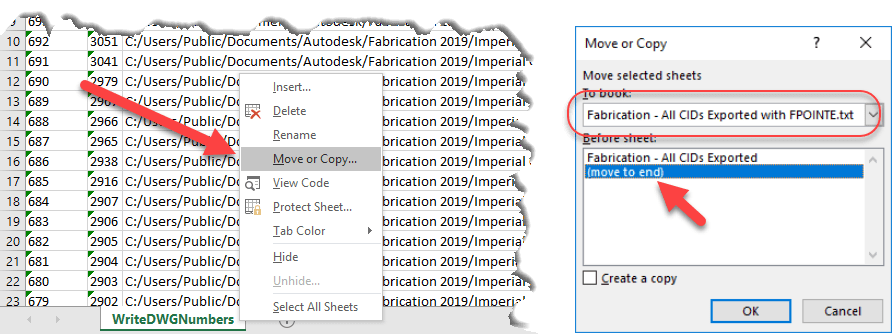
Next, we’ll move this entire worksheet to the first Excel file that contains our points. Right-Click on the worksheet tab and select “Move or Copy…“, use the drop down list in the Move or Copy dialog to select the spreadsheet with your exported point data and move it to the end. Click OK when done. This will move the sheet with exported Item Numbers and CID’s to the end of the other workbook.
Move the Exported Item Numbers Worksheet to Your Point Export File
When you’re done, you’ll have two separate tabs in your first Workbook. One lists only the Item Numbers of the successfully exported points, the other contains the Item Numbers and corresponding CID’s.
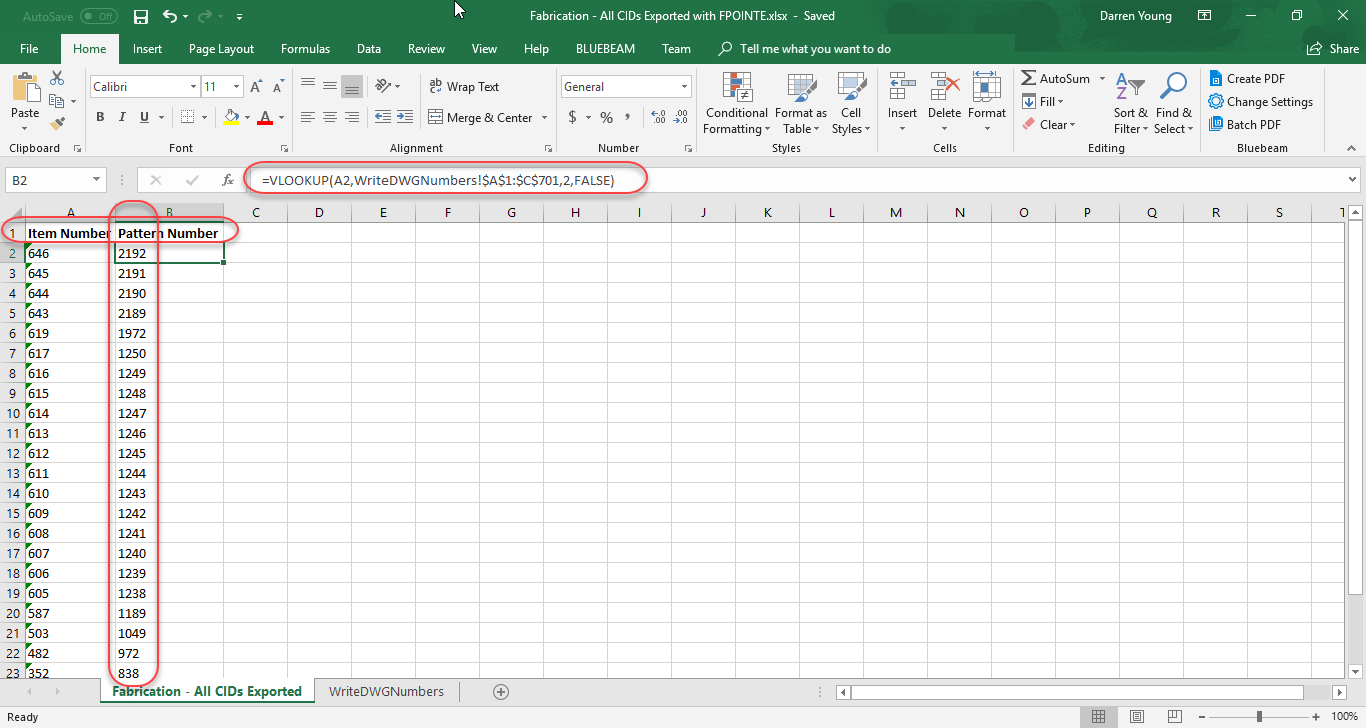
Go to the first worksheet tab where it lists a single column with the Items Numbers that were exported. Add a blank row at the top and type the text “Item Number” in Column A and “Pattern Number” in Column B. In cell B2, type the following formula…
=VLOOKUP(A2,WriteDWGNumbers!$A$1:$C$701,2,FALSE)
After typing the formula, copy it to the remaining cells in the column to complete the cross reference.
This formula tells Excel to look at the ItemNumber, and find it in the first column of the range in the second worksheet that lists all the ItemNumbers and CID’s. When it finds that corresponding ItemNumber, return the value from the second column which contains the CID. The “$” in the cell address of the range tells Excel to NOT increment the range address as the formula is copied down…you want to look at the same range no matter what. Finally, the False flag tells Excel to do a strict match and not try to interpret close results. Your finished data should look like the following…
This completes our final list of Pattern Numbers (CID’s) that support Field Point Exports. You can look at my Excel file by downloading it from here.
Note that when we looked only at Items that contained the Export option, there were 14 patterns. However when we tested against the actual point export in CADmep, we ended up with 25 patterns. Our final list of PatternNumbers (CID’s) that support field point exports is here…
149
321
322
838
972
1049
1189
1238
1239
1240
1241
1242
1243
1244
1245
1246
1247
1248
1249
1250
1972
2189
2190
2191
2192
Hopefully you’ve gained an idea on how to use some of the scripts, Excel and other processes to mine and extract data from your Fabrication configuration. It’s using techniques like these that allow me to assemble a lot of the information I have on this site like which versions of software have which CIDs’s and which ones are supported in Revit.