COD Script Extension for VS Code

If you write COD Scripts for Autodesk Fabrication, take note. There’s now an Extension for Microsoft Visual Studio Code (VS Code) which is Microsoft’s free code editor. If you use Notepad or Notepad++ to edit your code today you may want to consider switching. The COD Extension has some really nice features. Color coding of your code is the most obvious as shown below. However, there’s a lot more than just color coding. Features like Auto-Complete, Folding Sections and Dimension/Option Picker are nice additions in addition to a lot more robust documentation.
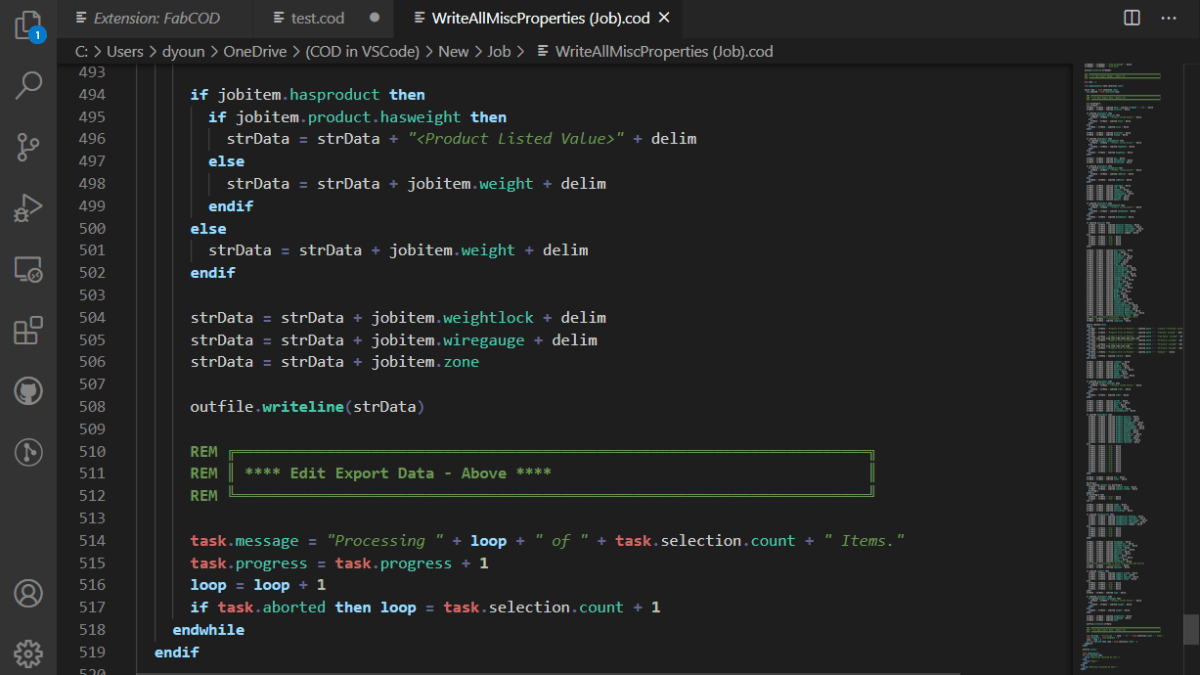
Installing The Fabrication COD Extension

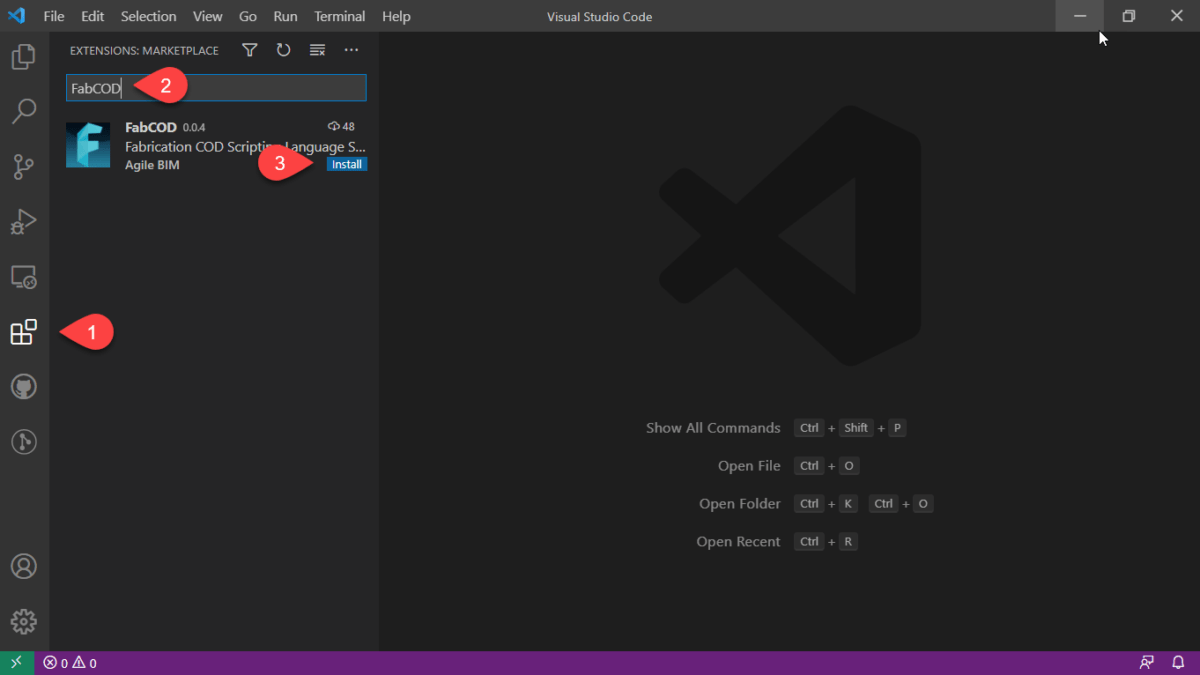
If you don’t already have it, you can download and install VS Code here…https://code.visualstudio.com/. Once installed, go to the Extension section, type FABCOD and click the Install button.
Extension Summary

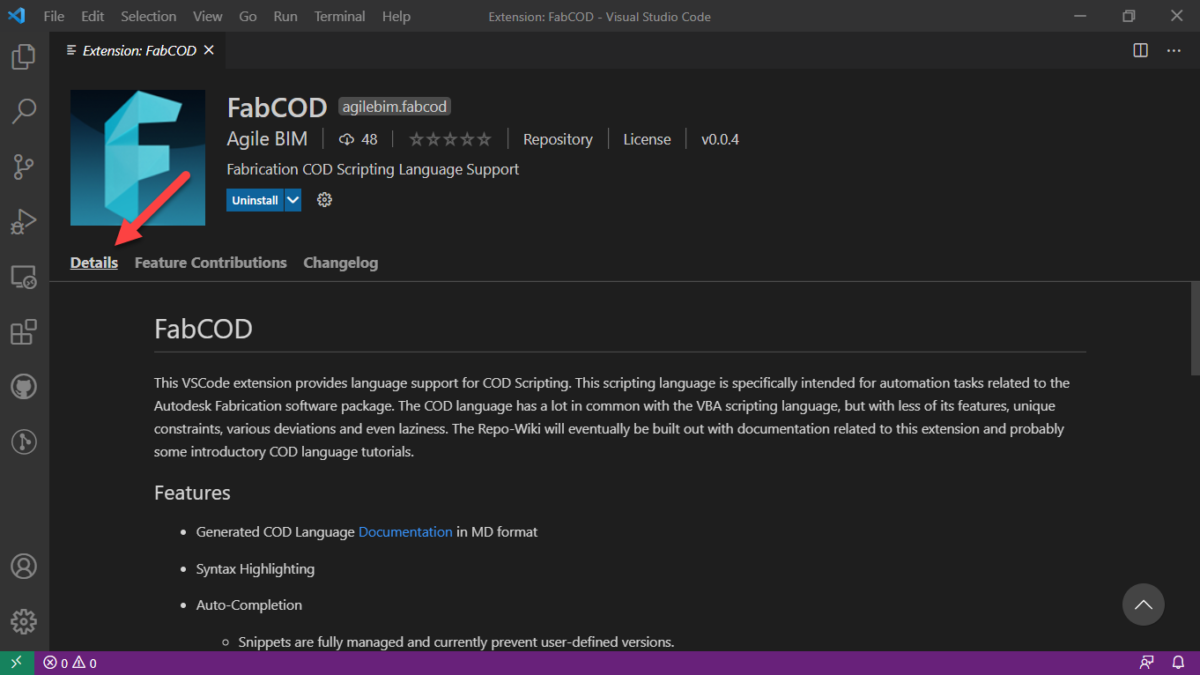
Once you’ve installed the Extension, you can review a summary of extension details here…
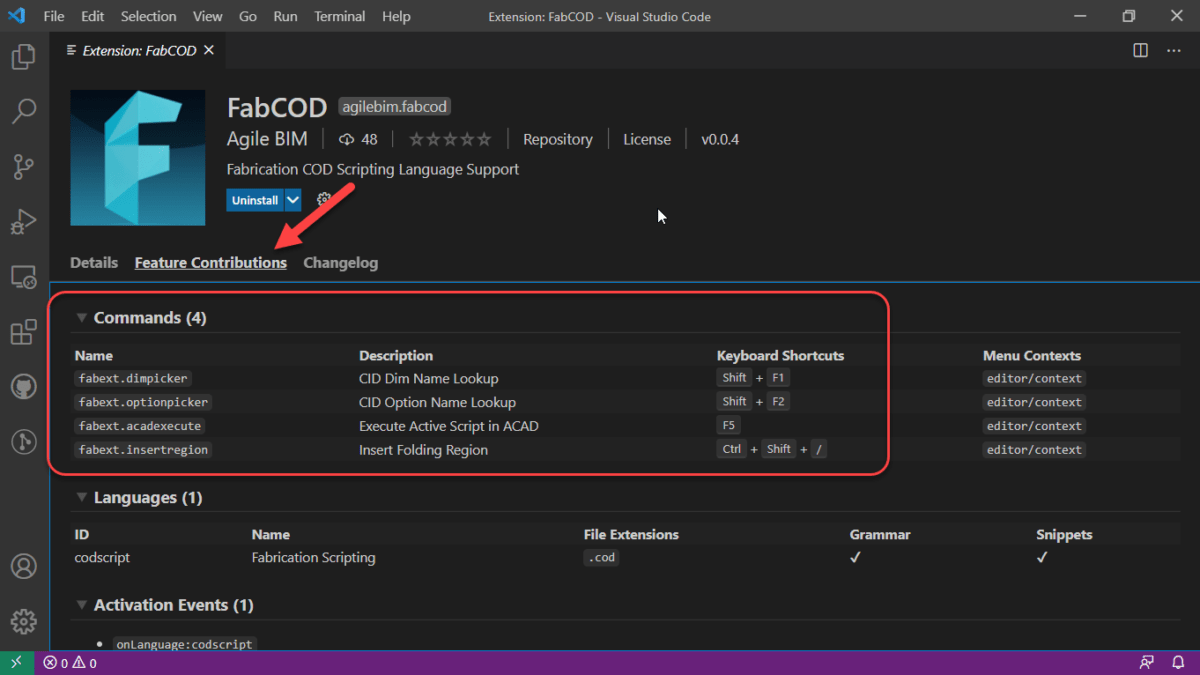
From here, you can review a couple of the key features and their keyboard shortcuts….
VS Code Feature – Mini-Map

Not a feature of the extension, but one reason VS Code is a nice editor is the Mini-Map which helps you visualize where you are your code.

FABCOD Extension Feature – Folding

One of the features the FABCOD extension exposes in VS Code is the ability to collapse/expand sections of code for Looping and Conditional function and other areas. When you move your cursor to the left margin, you see symbols that activate this functionality called Folding.

In addition to Folding sections of code, you can create your own areas of code to collapse/expand. These are Folding Regions and can be inserted (or typed manually using the proper syntax) by highlighting the code and pressing CTRL+SHIFT+/.

FABCOD Extension Feature – AutoComplete

Auto-Complete is another core feature of any code editor. VS Code’s Auto-Complete features is leveraged by the FABCOD extension. You’ll need to be editing a saved file with a COD file extension so the VS Code extension knows which code extension to use.

ABCOD Extension Feature – Hover Tips

If you hover over known functions/properties and their context can be determined, VS Code will display a tooltip for the function you’re hovering over. This can be a great way to learn coding as it’ll help you with the syntax.

FABCOD Extension Feature – DIM / OPTION Picker

One of the best features of the FABCOD extension is the ability to get suggestions for the Dimension (DIM) and Options. You can activate the DIM picker with SHIFT+F1 and the OPTION picker using SHIFT+F2 keyboard shortcuts. When using these features, you are presented with an edit box. You type the CID/Pattern Number you’re interested in and press Enter. You are then given a list of Dimensions or Options you’re interested in. It’s not fool proof because some patterns have variable DIM/OPTION values but it seriously helps none the less. Take a look here…

FABCOD Extension Feature – Additional Help

Sometimes you need added help for a function. The FABCOD extension is an open source project on GitHub (https://github.com/AgileBIM/FabCOD). This project contains added help for every function and property and is Auto-Generated and updated as the extension is developed. You can access this help from any of the popup ToolTips by clicking on the BLUE hyperlinked text.

FABCOD Extension Feature – AutoCAD Launcher

One of the other neat features of the FABCOD extension is the AutoCAD Launcher. Pressing F5 in the editor will initiate the script in CADmep. Simply Alt-Tab to AutoCAD and press enter. AutoCAD and CADmep must be loaded at the time for this to work. Due to Autodesk’s limitations in their API’s, this functionality does not work with ESTmep or CAMduct.

VC Code FABCOD Extension – Wrapup

There’s a lot more to VS Code that I won’t get into here. I’ve only covered the highlights of how it and the FABCOD extension can be used to help edit COD file in Autodesk Fabrication. As it’s an open source project, there’s instructions on how to become involved if you have the coding skills. You can also just head over and log issues or suggestions. (https://github.com/AgileBIM/FabCOD)
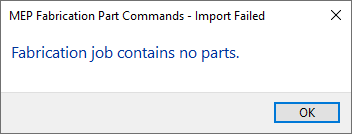
Fabrication Job Contains No Parts – Possible Fix?

Have you ever tried importing an MAJ into Revit and received the following error….Fabrication Job Contains No Parts.

There’s a lot of reasons this can occur and it’s NEVER because there are no parts. So much for Autodesk’s QA/QC and Error checking.

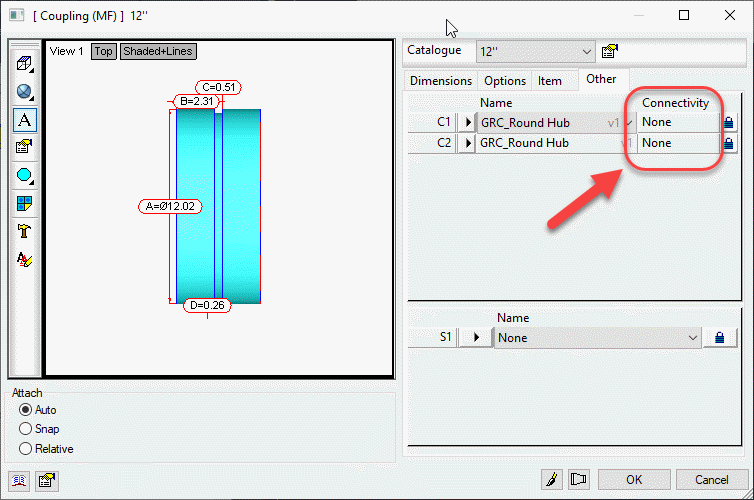
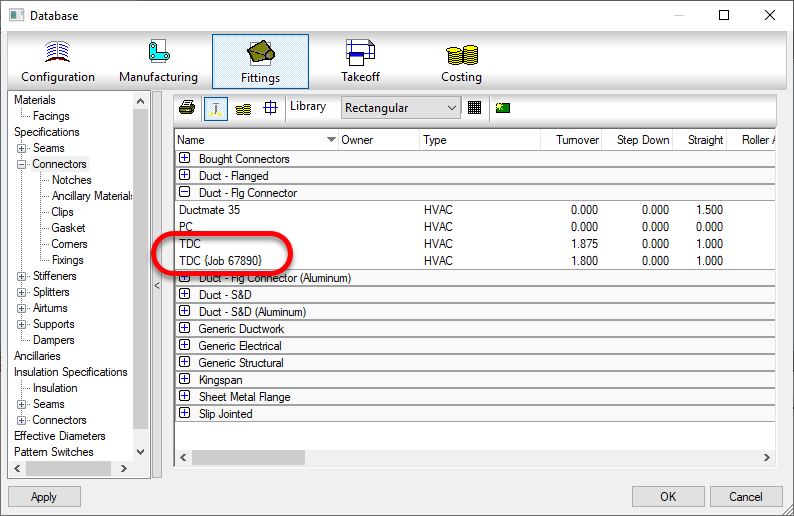
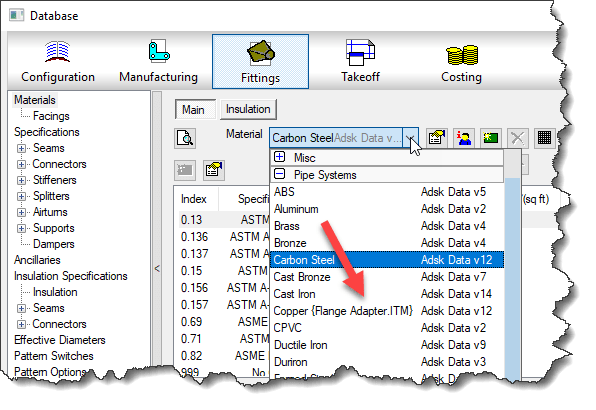
You may see this most commonly because parts used in the model contain data that’s no longer in your database. You’ve likely noticed from time to time database entries with curly braces around parts of the name like the following…

This happens when an entry in the database is used by an ITM but the database entry itself later gets deleted. Information is cached within the ITM so when it’s accessed, it creates a Proxy entry in your database if it was missing. Within the {Curley Braces} is the name of the object that created the entry.

While CADmep, ESTmep and CAMduct handle this fairly gracefully, Revit on the other hand does not. When it attempts to load an MAJ, it sees these entries and notices they’re missing from your database and prohibits you from importing the MAJ file. Revit thinks the database doesn’t match the MAJ and stops you cold!

A Possible Fix

If this is cause for the import error, you can use the following COD script to potentially work around the issue….

Take the following script and run in in CADmep, ESTmep or CAMduct. You should be logged in with Administrative Permissions while doing this. This script isn’t fixing Revit or the MAJ. What it’s doing is loading ALL the ITM’s from your Database Library into memory.

The process of loading all these ITM’s into memory creates all these proxy entries in your database. This way, when Revit attempts to import the MAJ, the data associated with those ITM’s are most likely present in your Database configuration. In many cases then results in a successful import of the MAJ.

If the Revit file you are importing the MAJ into already points to a Fabrication Configuration, you should reloaded the configuration FIRST before attempting to import the MAJ.

If for some reason this process still doesn’t work, verify that Revit is reading from the same database location as the version of CADmep, ESTmep or CAMduct where you ran the COD script.

In the event it still doesn’t work, there may be other reasons for the failure but this is often the most common, especially with MAJ’s created recently.

If it does work, you’ll want to use the other scripts I provide on this site to help analyze your database. You likely deleted those database entries in the first place for a reason. You either didn’t realize they were needed, or you didn’t know where they were used to repoint those ITM’s to a proper substitute. Those scripts can help you find which ITM’s use which database entries.

Hope this helps.

Autodesk Fabrication Scripting – Did You Know?

In the list of COD Scripting updates I just posted, there’s a couple undocumented functions that have been on my list to explore for more than a few years. I’ve finally gotten to them and figured out what they do.

I won’t comment on how long it took me to actually explore what I had listed in my “To Research” list for years other than to say, Procrastination is a Virtue for those with no Patience.

So without further delay…here you go….


Output Function

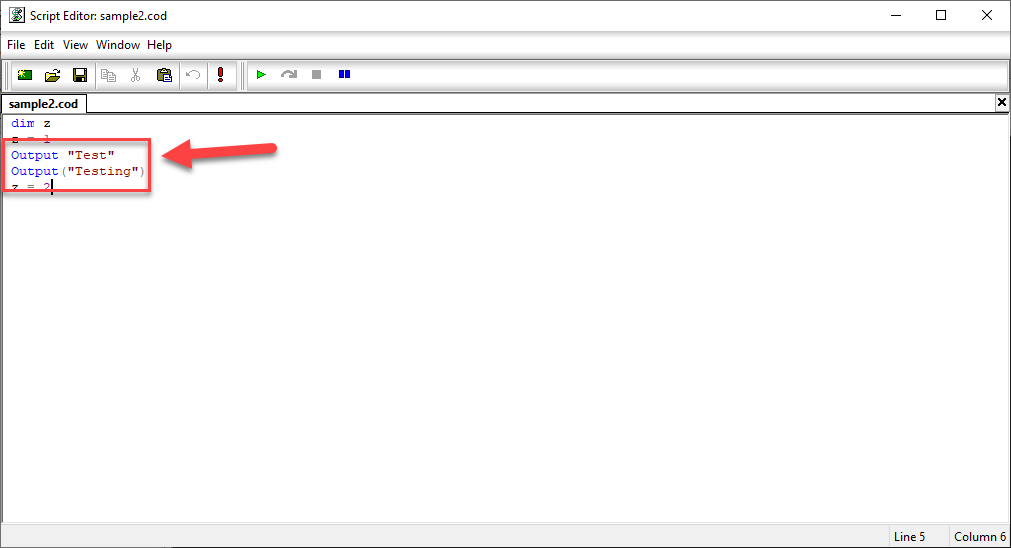
This first one is the OUTPUT function. You can call it a couple different ways, with and without parenthesis just like the DEBUG function. It doesn’t really seem to matter. It’s really kind of a worthless function in my opinion.

Not only does it only work in CAMduct and ESTmep (not CADmep) it really isn’t that helpful. It just outputs a message to the Console window. I was initially hopeful it would allow me to “script” some of the secret Console command but no such luck. It’s just a message.

You can see in the COD Code editor the below with both syntax examples…

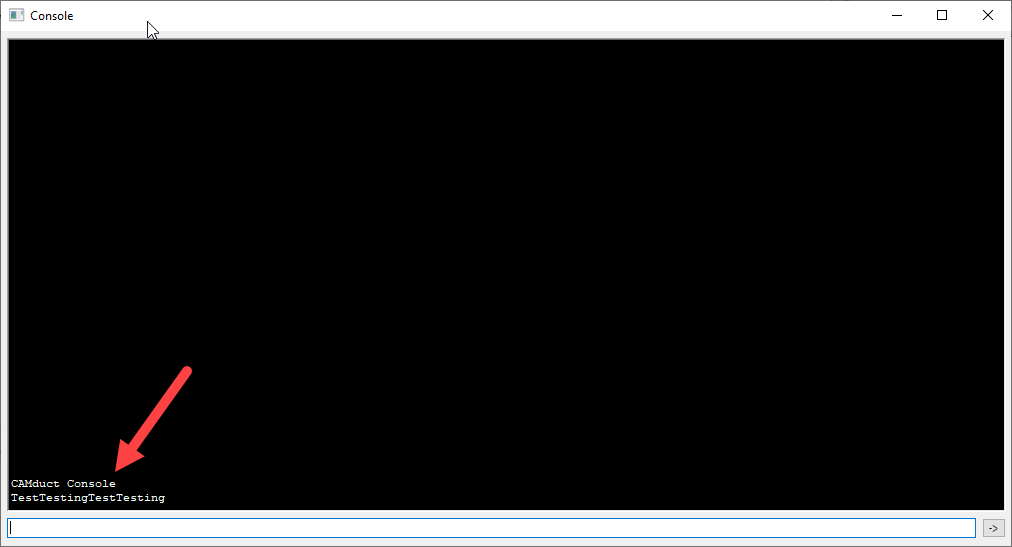
When you run the script, it’ll call up the Console and display the text you specified. You can see from the following example, it doesn’t even space the text when you call it multiple times. Even tried embedding a Carriage Return in the string and still no luck automating via the Console.


Breakpoint Command

The other command is much more helpful and something most folks don’t know about. I have run into a couple now who knew but most it’s not known. I wish I knew years ago…it’s actually a small step closer to what you’d expect in a modern IDE (Integrated Development Environment).

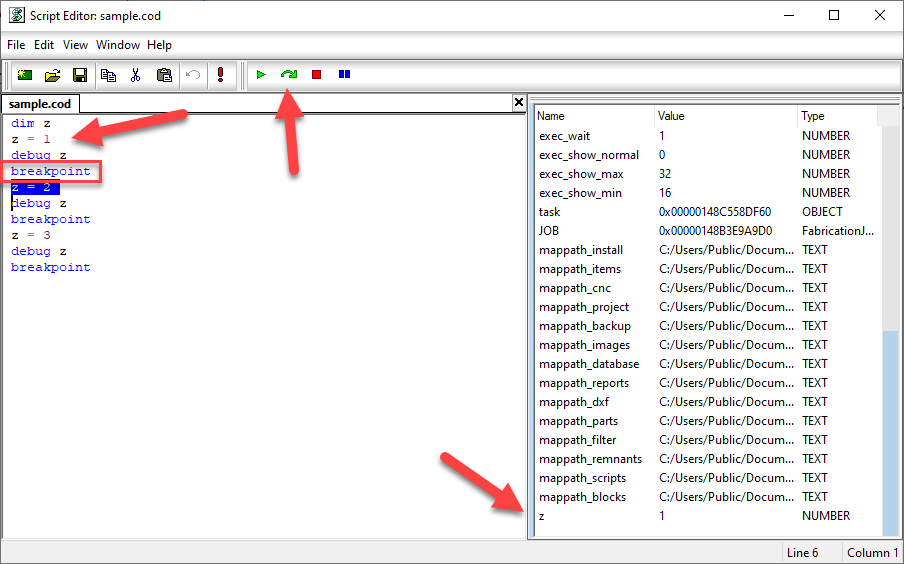
The Breakpoint function calls up the panel on the right. It displays the values of all your variables. You can see how the value of the “z” variable is displayed. When you hit a Breakpoint, code execution stops until you hit the green arc’d arrow. Code execution then continues until you get to the next Breakpoint if any.

You can access the COD Script editor in CAMduct or ESTmep using the FILE pulldown menu. You can also use the editor in CADmep but unfortunately, there’s no way to display it without writing intentionally wrong code to cause your program to fail and display it. You can then use the editor like you do in ESTmep or CAMduct.

One thing to note, BREAKPOINT only appears to work when you execute code from the Script Editor. If you call it from AutoLISP using (executescript “myscript.cod”) or the EXECUTESCRIPT command in CADmep or by right clicking in your Takeoff items in ESTmep or CAMduct, it runs without stopping your code. This means you can leave the breakpoints in your code and edit/debug via the script editor but not have to remove them when executing them un a production setting.

Digital Transformation for the Average Contractor (Part 1)

There’s a lot of buzzwords in the construction space. Digital Transformation…Industrialized Construction…Machine Learning….Generative Design…Augmented Reality…Drones…Robotics….and the list goes on. So what do you do? Today? Tomorrow? Next year? What actions do you take to prepare for a an unknown future? All while managing the challenges of your current projects, staff, backlog and cashflow.

I use the mechanical engineering/contracting industry in my examples. However the essence of what I’m about to say is applicable to almost any contractor. If you don’t have an unlimited budget, time and/or resources, knowing how to prepare for an uncertain future in the heat of battle can be alarming.

But it doesn’t have to be. You don’t need a crystal ball. You don’t need unlimited overhead and staff to properly prepare yourself and prevent yourself from becoming obsolete from business disruptors. What you need is a good plan. A plan that helps you understand what’s happening, why it’s happening and most importantly how to make the correct turns when you’re not sure exactly where you need to navigate.

The problem…

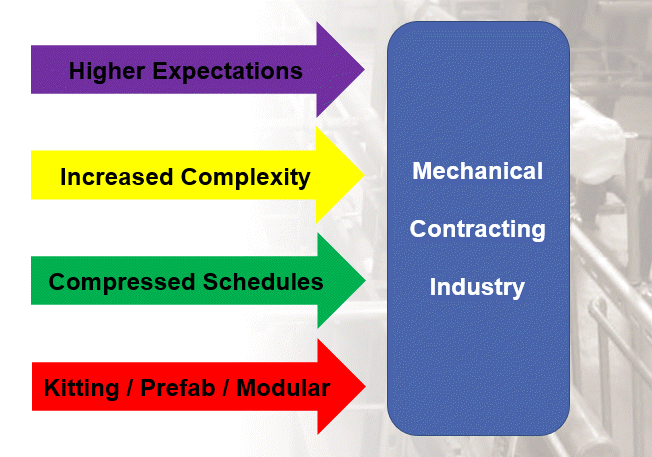
The contracting business is changing. This is creating a few big challenges to maintaining profitability and efficiency. To survive, we need to tackle these changes head on. Don’t worry, it’s not that hard.

What’s Driving This?

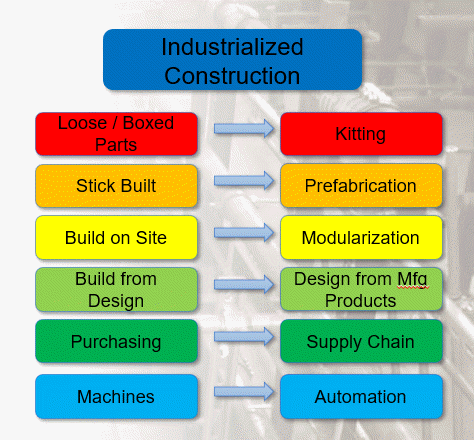
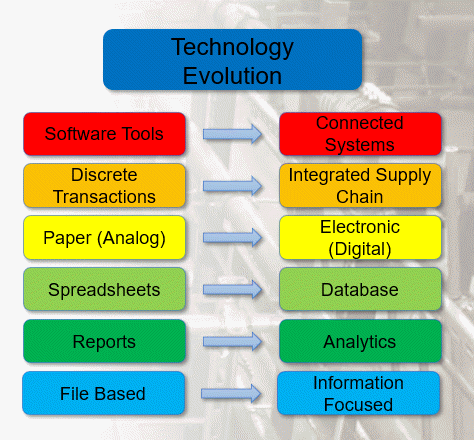
A lot of things are driving these changes, most of which can be grouped into one of two categories. The following lists outline some of the major trends and shifts occurring.

Current trends contributing to “Industrialized Construction”
“Technology Evolution” is driven by several changes.

If you look at any of these trends individually, that all seem obvious. Not only obvious, but it’s hard to argue that any of them are negative or harmful. In fact, they all seem like good things. And they are. But when they’re all happening in unison, all these “good things” are creating a lot of the problems the industry is currently experiencing.

The Chaos of Today

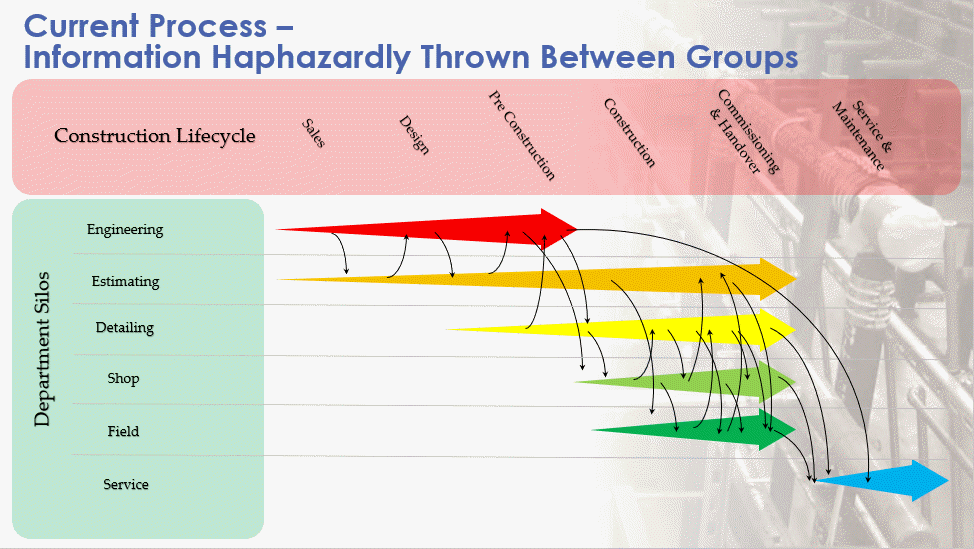
To help manage these disruptions, it’s helpful to understand what’s happening today. Below shows an example of today’s workflow. Most groups work in silos. As they work and create more data and information over the duration of a project, they start throwing it over the fence to others within an organization. Meanwhile, other parts or the organization throw data to them.

Existing project workflows…Separate groups and processes throwing data at each other.

For most this feels like we’re juggling a ball, an egg and a chainsaw. And while we’re juggling we’re also simultaneously in the middle of a game of dodgeball.

So what happens when…

  • We forget to throw data to others
  • Too much / too little information is thrown
  • We don’t catch data thrown to us
  • Too much / too little information is caught
  • We miss the catch or forget to throw
  • Information is caught or thrown early / late
  • We loose information
  • Information was unclear
  • We throw or catch data to fast / slow
  • Data is obsolete or unapproved
  • We get duplicate data

The Solution for Tomorrow

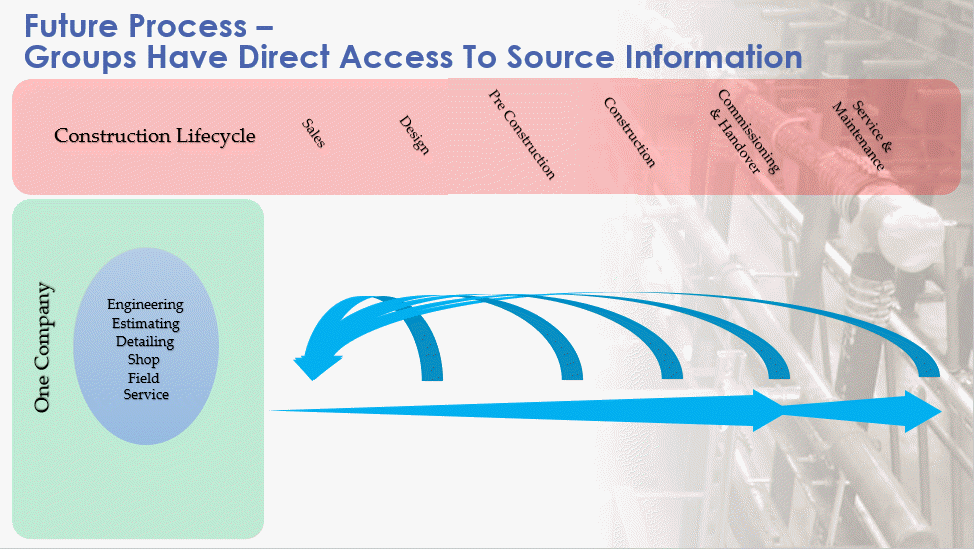
To combat these problems, we need a new process. The below is what we really want. A single stream of data everyone accesses. With this model, you don’t give anyone data, they inherently have access to the data you have which they need. It’s not a copy of the data or a report of the data. It’s access to the source data. Now, when someone needs information, they have access to it.

New project workflows…We all share in a pool of data.

Throughout the construction process, because our data is less fragmented, it’s easy to warehouse. This allows you to better inform design by pulling the historical data from the service group. Sales can now leverage this data to explain the lifecycle savings when your bid may be higher. In reality, any data from any phase can more readily be accessed from any other phase. Quality of the entire process improves when this happens.

A New Technology Stack

This “Future” process is very likely a utopian state we can never fully accomplish. At least not in our lifetime. But that doesn’t mean we can’t get closer. This doesn’t mean we can’t take a more thoughtful and meaningful approach to the solutions we use. The fact is we can. We may still have to use technology we would rather not. Things we can’t integrate as well as we’d like. But we can get closer.

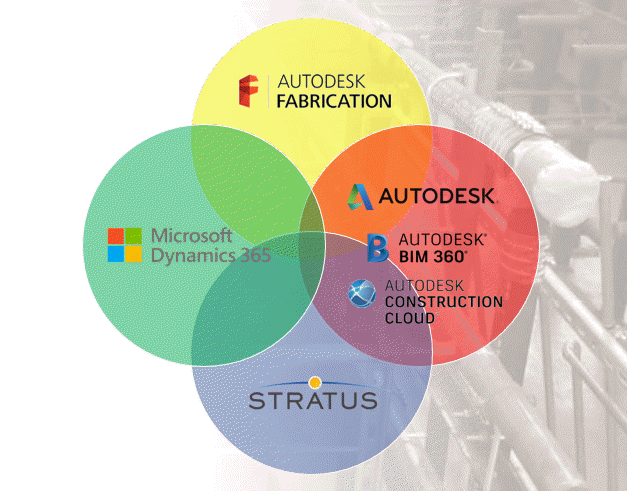
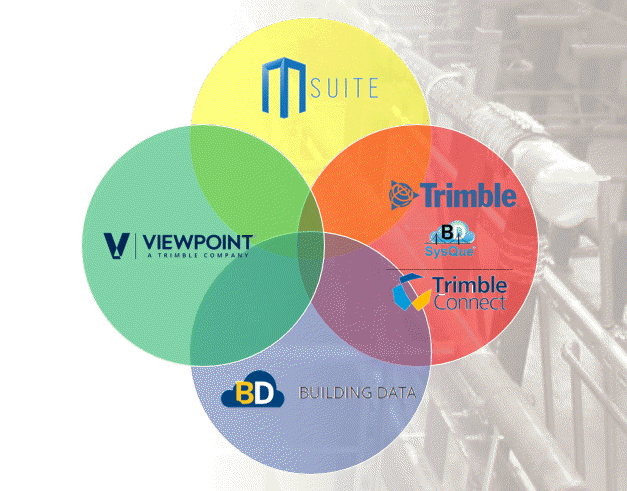
The following are examples of a technology stack portfolio. Key technologies thoughtfully selected which form the backbone of your digital process.

Example of a “Microsoft / Autodesk” based Technology Stack.
Example of a “Trimble” based Technology Stack.

These are just two examples. You don’t have to follow these examples. Your technology stack may be mixed or match differently. You may even have different solutions than those shown in the example.

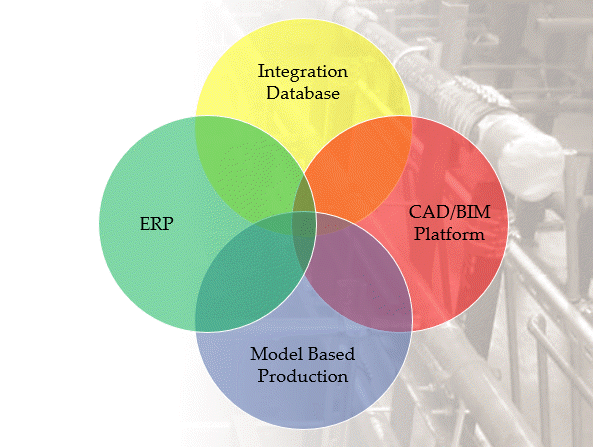
In these examples, we could use Building Data with Stratus, or Autodesk Fabrication with MSuite. Stratus and MSuite are both model based production management systems. They can both leverage your BIM platform and your BIM content and integrate with your company’s back end ERP system. For a mechanical (or electrical, general, etc.) contractor you can look at a more simplified representation below.

A good “Generic” Technology Stack Model.

Again, your model may differ. You may have two or three circles. The names in those circles may be different. But you shouldn’t have six or seven or twenty circles. It’s important that you put thought into how these systems can be used and work together. It’s also important that you understand their limitations.

This isn’t to say you don’t use a lot of additional applications. But they shouldn’t be major data stores without connectivity to some of the pillars in your technology stack. Ideally they’ll connect to one of the existing pillars but not be a major pillar in themselves.

Wrapup

This wasn’t really intended to be a roadmap. It’s more of a vision. Something you should be trying to achieve with careful thought and consideration. There’s no magic formula or combination. Nothing you should blindly copy and follow from others. Your technology stack needs to match your organization. The speed and effort to put it place based on your company culture and organizational readiness.

Regardless of how long it takes, the important thing is you’re working toward that vision. We don’t know what the future will bring in our industry. Some things will never change while others may abruptly disrupt your business. No matter what changes are forced upon you, the less impactful these changes will be the closer to this model you are. When required to, you’ll be better positions to respond in an agile manner.

In my next article, I’ll cover some things you can start doing right now that can help prepare you to implement this new model.

COD Script Updates – 2020.07.08

I’ve made a couple updates to the Autodesk Fabrication script libraries. If you use them, you can download updated versions from here.

Scripts have been updated to include the Connector Material property found on CID/Patterns 522, 1522 & 2512 as shown below…

This property is intended to be used by a connector to specify a alternate material the connector can connect to. This allows a coupling to connect to alternate materials such as with transition couplings.

Credit for discovering the COD function to extract this property goes to Liz Fong at MacDonald Miller Facility Solutions in Seattle, WA.

Note: This property has also been added to the list of COD Item Properties located here.

Scripts Updated

  • Debug Scripts
    • Debug ITEM Connectors.cod
  • Job Item Scripts
    • WriteAllConnectors (Job).cod
    • WriteAll_Props (Job).cod
  • Library Item Scripts
    • WriteAllConnectors (Library).cod
    • WriteAll_Props (Library).cod

Autodesk Fabrication: Best Practice #13

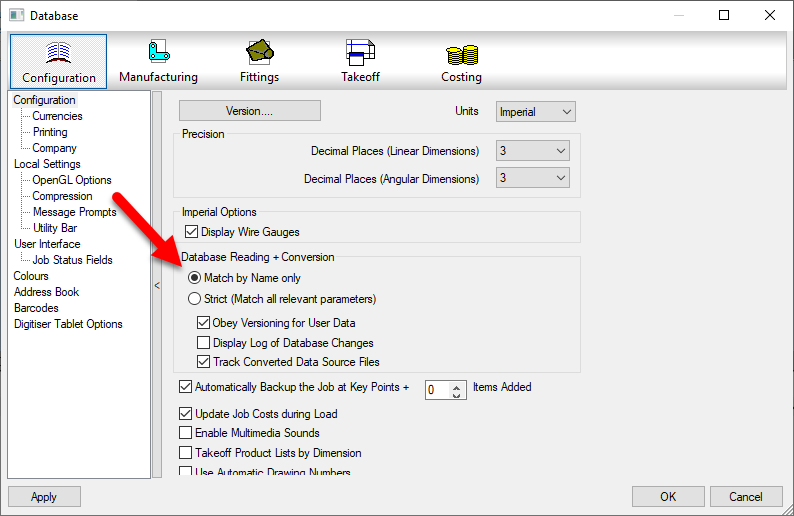
Use “Match by Name only” in Database Settings

Do you have issues with duplicate entries in your Fabrication Database? These could be proxy entries…those followed by text enclosed within {brackets}. Or they could be identical..if someone made the proxy item permanent,

This can be caused by using the Strict matching setting in your database setting. It’s recommended to use Match by Name only.

When you use Strict naming, when you open drawings or MAJ files, the database settings within those files are compared to those in your configuration. If the data is deemed relevant and it varies, even something as small as a number 3 decimals vs. 4 decimals can add another entry into your configuration.

When using Match by Name only, as long as the name (and group) matches, the entry is considered the same and you don’t end up with duplicate entries.

Fabrication Reference Data Updated for 2021 Versions

Autodesk Fabrication reference data has been updated to include 2021 versions of Autodesk Fabrication software.

Updated references include…

The only change I’ve found in from 2020 to 2021 versions is the CADmep command DWNLDC Command (DOWNLOADCONTENT Alias) is no longer present. This use to download ITM content from Autodesk’s www.Building3DContent.com site. This site is no longer active and Autodesk has included all the content within the default Imperial and Metric configurations that ship with Autodesk Fabrication Content.

User’s of Trimble’s Managed ITM Content (building-data.net) use to use this command as well. It was just redirected to the Building Data site. It’s unclear how this change will affect them as the core DLL’s used for this process appear to have been removed in 2021 versions of Autodesk Fabrication.

If you’re a user of Trimble’s Building-Data, I’d suggest contacting them for support if you have issues.

Autodesk Fabrication: Best Practice #12

Compress Fabrication Data Files.

Autodesk Fabrication configurations can Compress their data files. It’s a good idea to have this enabled. Not only does this make the files smaller and take up less space, it makes them faster to load. This increases your performance as the data is expanded in memory as opposed to read more data from disk.

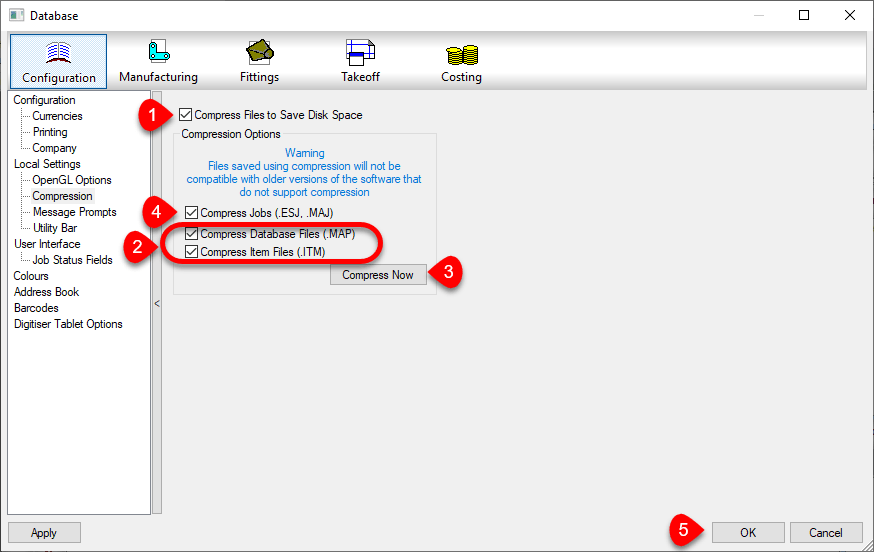
You can enable this option in your database settings. Doing this does not automatically compress existing data that’s not already compressed. The following image shows a suggested sequence of operations. This would both enable compression and compress the existing data.

  1. First Enable Compression by selecting the Compress File to Save Disk Space toggle. Future writes to data tables will be compressed when if they are configured to.
  2. Next, enable the toggles for Compress Database Files (.MAP) and Compress Item Files (.ITM) options. This will tell Fabrication to Compress the existing Database and Item files. Also, “unselect” the Compress Jobs (.ESJ .MAJ) option.
  3. Click the Compress Now button. This compresses the Database and ITM files but will not scan your ESTmep and CAMduct job files.
  4. Once compressed, select the Compress Jobs (.ESJ .MAJ) option. This will compress all Future ESJ and MAJ files but not existing ones. If you wanted, you could have left that option selected in Step 2. However it would significantly increase the time it takes to perform the compression process. Because most of your ESJ and MAJ files are likely past jobs, there’s really no value in processing them now….but you could.
  5. Press the OK Button to save these settings.

Check Settings for Each Product, Version and User of Each Computer

You should also know that these settings are NOT saved in your configuration. The file that stores these settings is located here…

C:\Users\<user>\AppData\Local\Autodesk\Fabrication <version>\<product>\UserOpt.MAP

<user> = User's Windows Login Name
<version> = Autodesk product version. (e.g. 2018, 2019, 2020, etc.)
<product> = Autodesk Fabrication product (e.g. CADmep, ESTmep, CAMduct)

You can tell by the folders, that this setting is stored separately for each user on a computer. Because each product and each version is part of the path, those variations need to be set too.

Because Best Practice #9 tells you to use only one version for database administration, version may seem unimportant. But it IS important to know when you upgrade to a newer version for administration. Those versions should also have these settings reviewed.

Every user who does work in your database, should check each product and version for those settings. If they don’t, your work may compress files while their work may decompressed them.

Because clicking this just once makes it do it’s magic in your database, you don’t need to click the Compress Now button for each version, user, product or computer. The options merely need to be Set., telling those products what they should/should compressed or decompressed.

Revit Can’t See Fabrication Configuration

Every once and a while, a Fabrication Configuration can lose data or become corrupt which leaves Revit unable to access it. This after you’ve already been working in a model and using the configuration without issue.

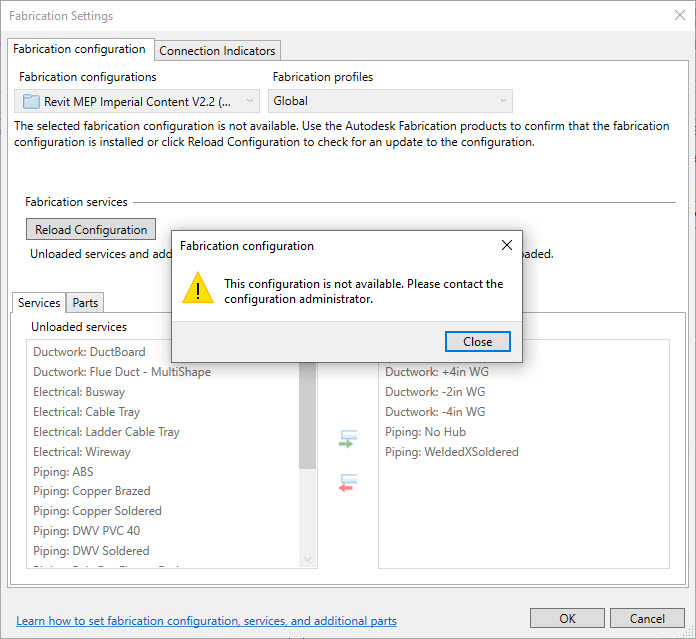
When this happens, it’s likely a result of the Fabrication Configuration loosing it’s GUID or “Global Unique Identifier”. You really only notice when attempting to reload the configuration in one of your existing models. The error will look like the following image…

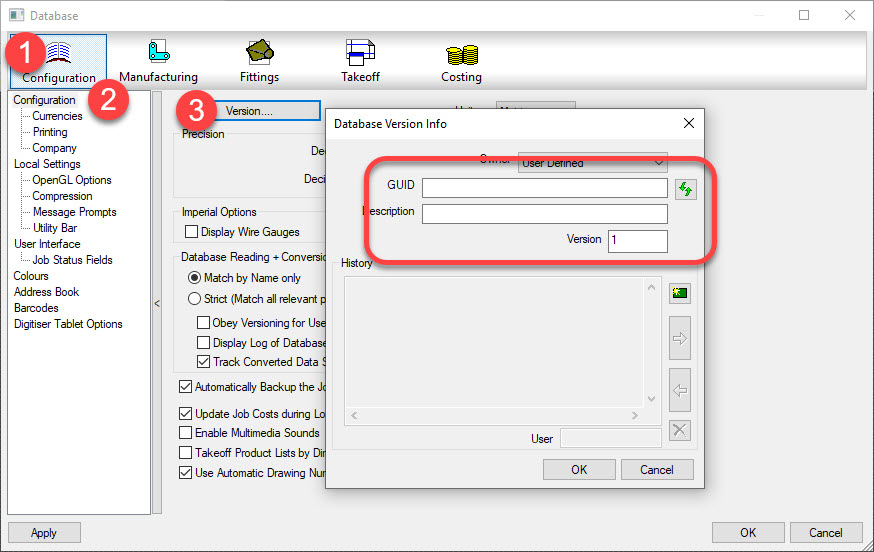
When you launch of the other Fabrication products (CADmep, ESTmep or CAMduct) you can view the data from the database editor. In the image below, you can see the data is missing.

Retrieving Lost Data

The good news is that you can the data back. For this, we’ll use Revit and Dynamo, Revit’s visual programming environment.

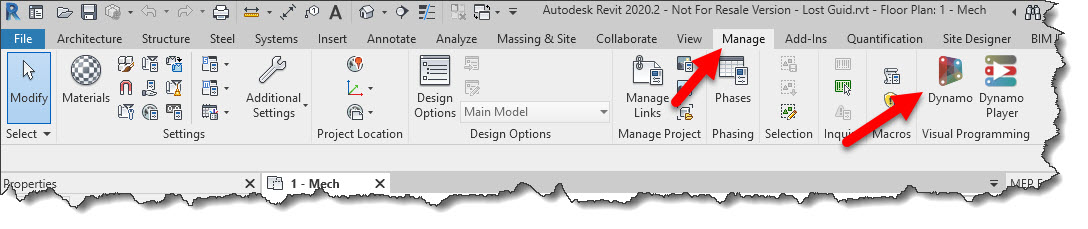
Start Revit and open up one of your existing project that already had a Fabrication Configuration loaded. From the Manage ribbon, click the Dynamo button.

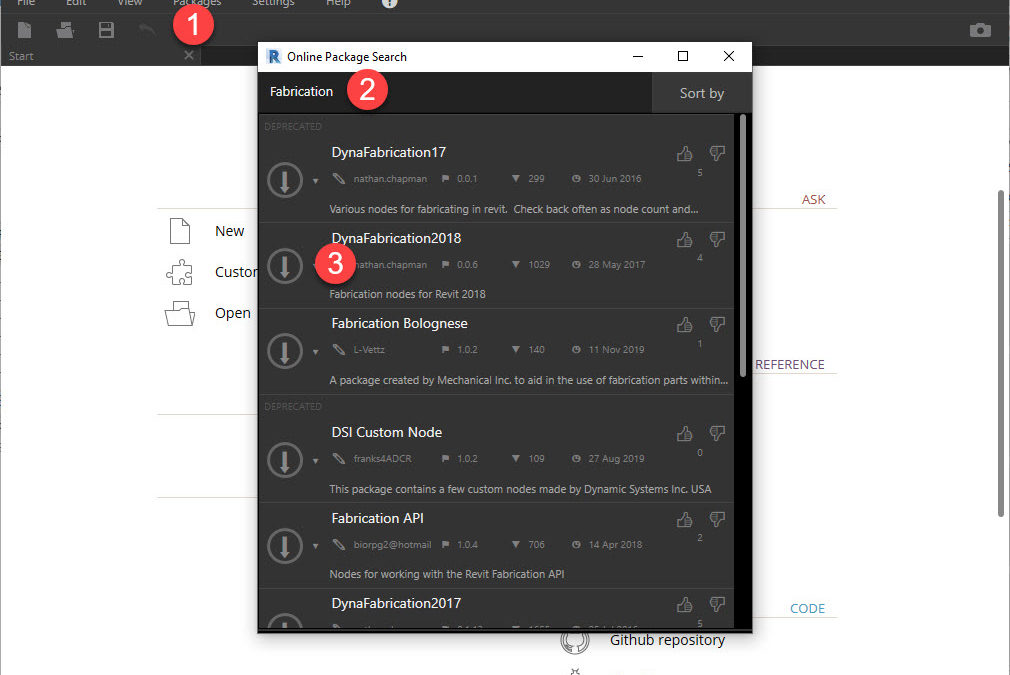
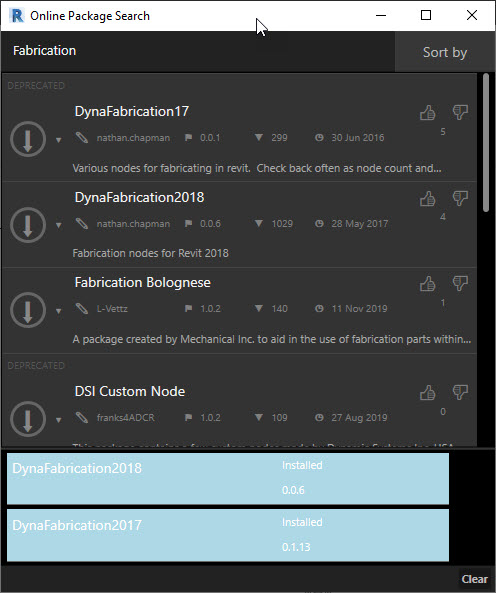
Once in Dynamo, you’ll need to load a Fabrication Dynamo package. Click the Package menu to display the Online Package Search dialog. You’ll need to wait a little while for the dialog to populate. Once populated, you can type Fabrication in the search box. In the results, select the DynaFabrication2018 package. Next, click the down arrow button on the left to install it as shown in the following image…

Once installed, the dialog will show the loaded modules at the bottom. It should look like the following image…

After the Dynamo packages are installed, you can build a Dynamo program that will extract the needed data. But instead of walking you through that, simply download, unzip and open the Dynamo program I’ve already created.

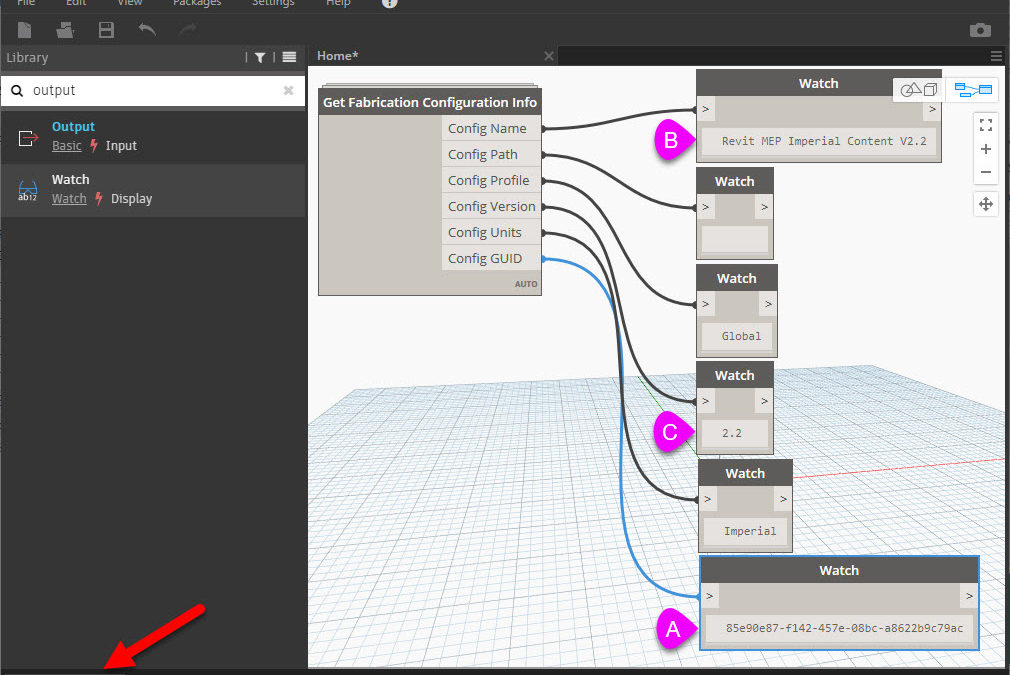
One Dynamo program Get Missing Fabrication GUID.dyn is loaded, your Dynamo screen should look like the following image…

In the lower right corner, if the button says Manual click the Run button otherwise if it’s set to Automatic, the information you need is already populated. Record the data in the fields marked A, B & C. This is what you’ll enter back in the database.

Add Data Back to the Fabrication Configuration

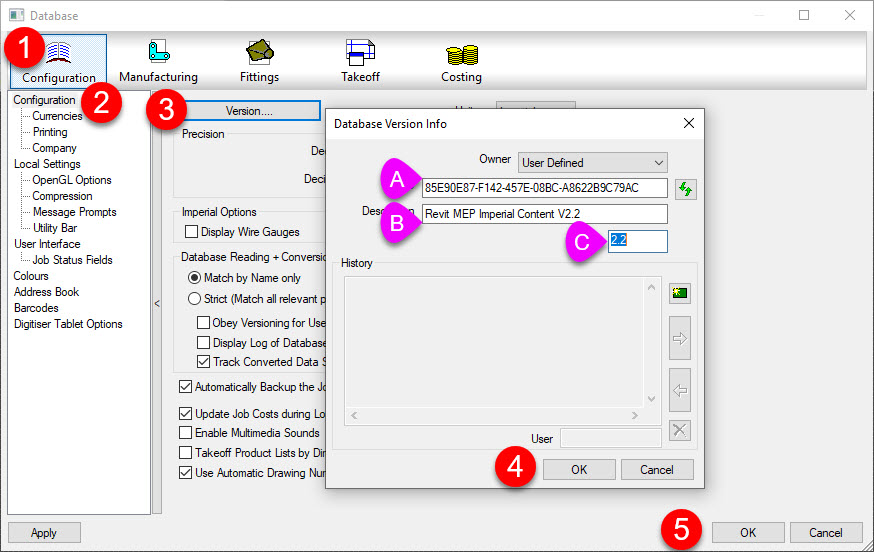
Launch of one the Fabrication products (CADmep, ESTmep or CAMduct). In the database editor, enter the information from Dynamo into the fields marked A, B & C as shown below…

Exit the database editor and exit from the Fabrication product you launched. If you still have Revit/Dynamo loaded, close both. Now, relaunch Revit again and open the model you opened before.

When you go to reload the configuration again, Revit should successfully find and reload your configuration.

Autodesk Fabrication: Best Practice #11

Don’t use Commas (,) in Database Entry Names, ITM File Names, Don’t Use Them Anywhere.

Similar to Best Practice #1 (Don’t use Double Quotes), you should avoid using commas. Commas are the delimiting character in a CSV file. Using a comma can throw off the data columns in data exports that use the CSV file format.

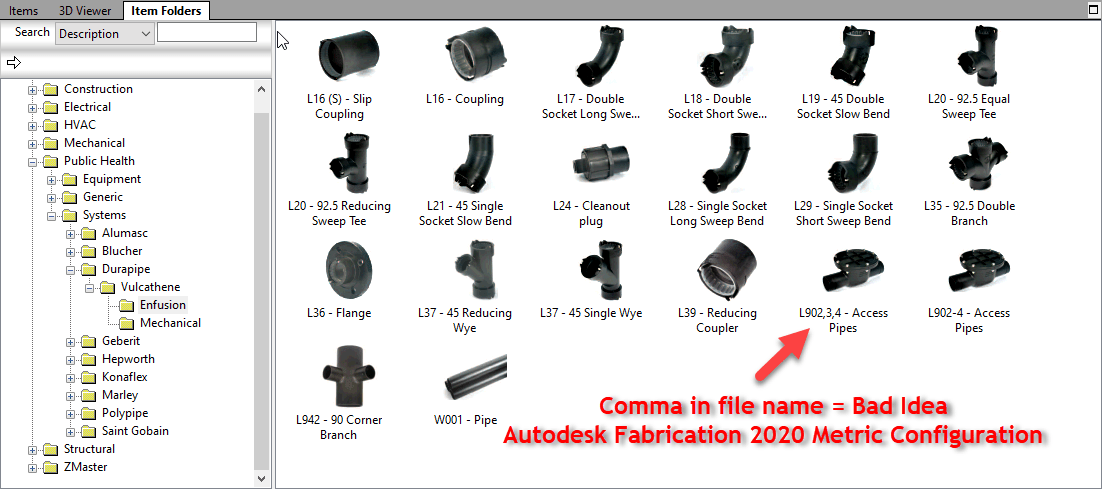
Below, you can see Autodesk let a comma slip into a file name in their Metric Configuration.Yes – Ancillary in Ancillary Kit