Fabrication References – 2023 Update

Fabrication 2023 is out. I’ve updated all the reference information to include 2023 formats. As has been the trend the last few years, little has changed. Summary below…

Fabrication Reports – All One Folder

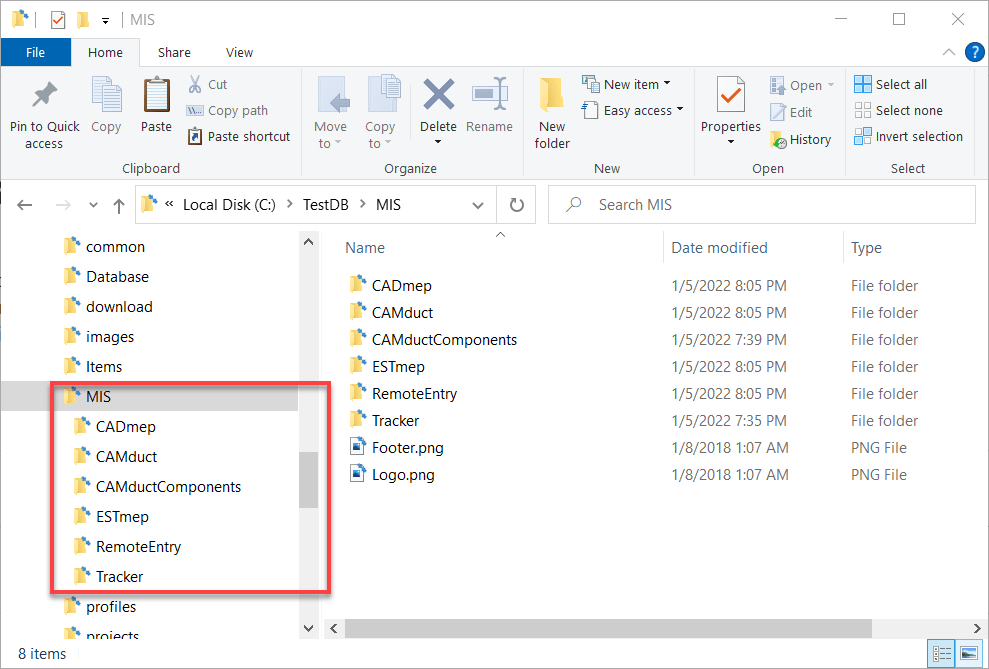
Those of you who used CADmep, CAMduct or ESTmep prior to it’s acquisition by Autodesk remember when all the reports were in one folder. Once Autodesk took over, they moved to a system where each product used a separate subfolder for their reports. After all, ESTmep is likely using different reports than CADmep and yet different than CAMduct. Here’s what your configured reports folders now look like (you may not have all products/folders). Notice how each product has it’s own older.

The reality is, many reports are helpful across products. This means you need to make the same report multiple times or copy it from one folder to the others. This leads to duplication of data and a chance than one of the copies gets changed different from the others.


Consolidating All Report to a Single Folder

It’s commonly asked if it’s possible to configure the different Fabrication product to use the same folder. The answer you always hear is No. Technically that’s correct. You can’t configure Fabrication products to look at the same folder. However….

You CAN configure Windows to make multiple folders look at the same folder. It’s just done at the Windows level with a feature called Junction Links.

So lets walk through how to configure CADmep, CAMDuct and ESTmep to all look at the same reports.


Step 1: Find Where Your Reports Are Located

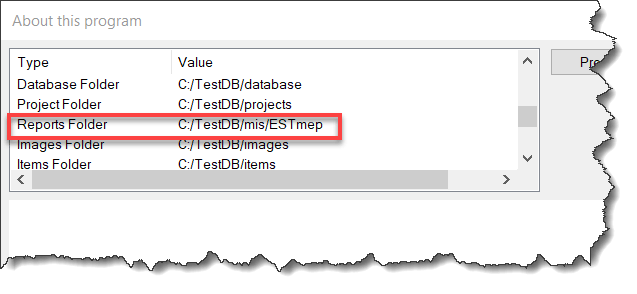
Using CAMduct or ESTmep you can pick Help -> About or type AppInfo at the command line in CADmep. You can then scroll through the window to see where the Reports are located. Alternatively, you could use the Edit Configuration utility to find this folder as well.

Note that this screencap was done in ESTmep so you see the ESTmep subfolder. The mis folder is actually the root where all your reports are.


Step 2: Copy All Report Folders to a New Folder

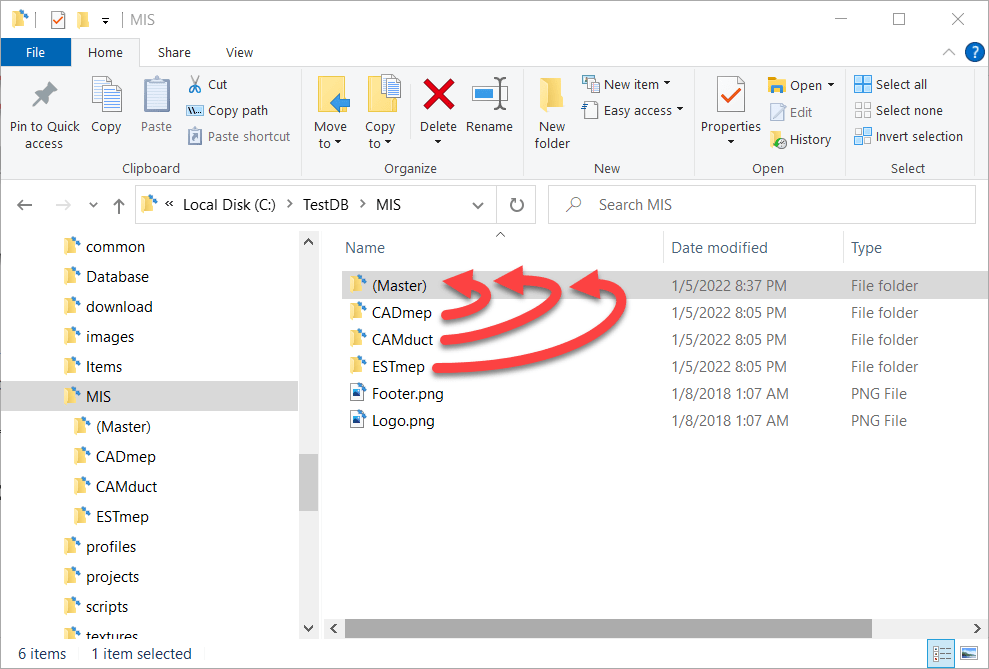
The next step is to copy all the reports from the various product specific folders to a new master folder location to store the reports. In this case, we’ll call it (Master) just to make it super obvious. Notice we also deleted the folders for CAMductComponents, Tracker and RemoteEntry because I’m not using them. You can choose to include them if you need them,


Step 3: Backup and Delete the Original Reports Folders

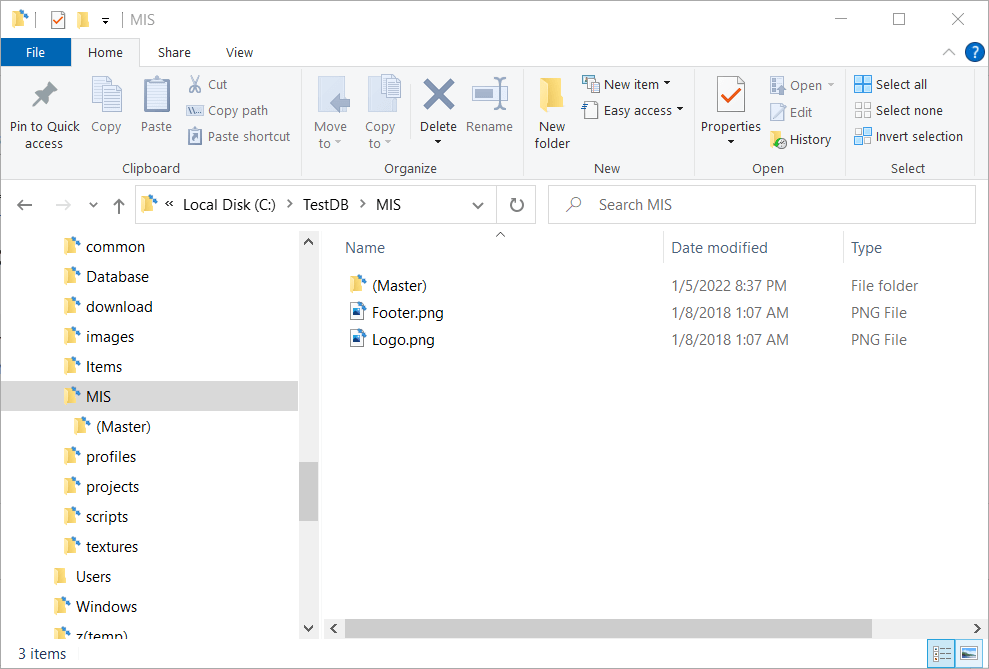
When you’re done, you should back a backup of the product specific reports folders elsewhere incase you want to go back to the original config. Once backed up, you need to delete the original product specific reports folders. When you’re done, your reports folders will look like this…


Step 4: Create Junction Links for the Product Folders

Here’s where we do the magic. Windows allows you to create what’s called a Junction to other folders. A Junction is just another virtual folder that looks at the contents of another. Junctions are how Windows has a “My Documents” folder that really points to “C:\Users\<Username>\Documents“.

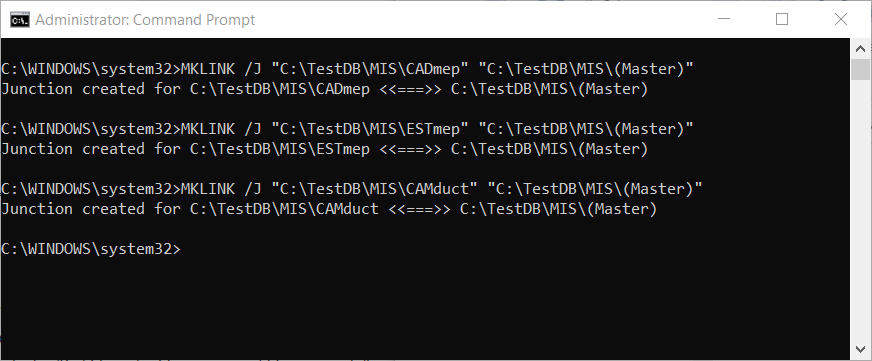
To create a Junction you need to open a Command Prompt with Administrative permissions. One that’s done, you use the MKLINK command to make a Junction Link to a Junction Target. The syntax looks something like this….

MKLINK /J "link folder" "target folder"

Here’s a screencap of my DOS Command Window where I make Junction Links to the (Master) reports folder…

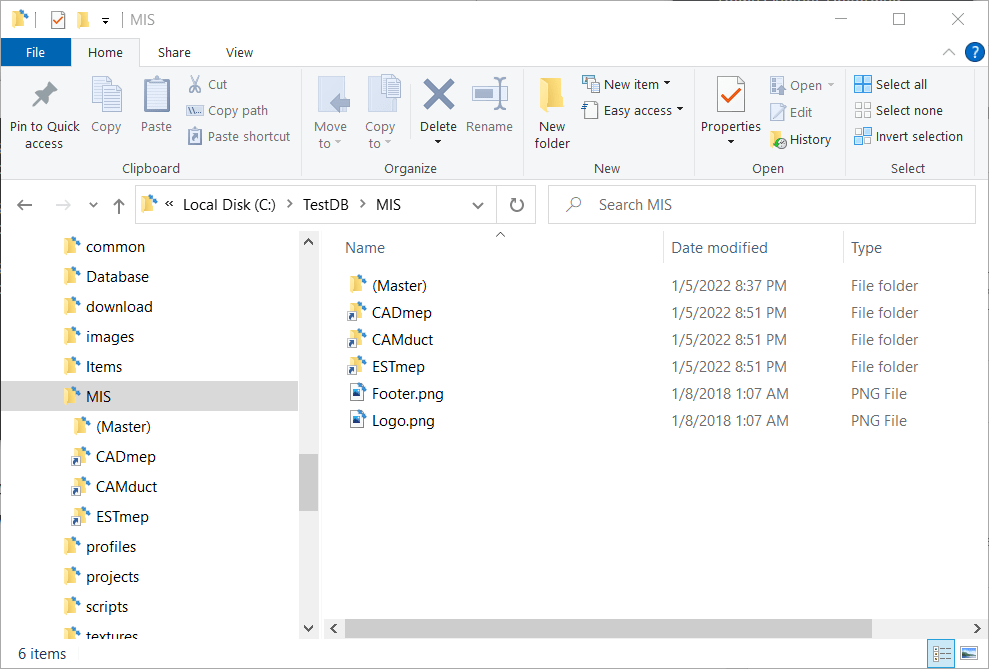
When done (if Successful) you’ll see those product specific folders again for CADmep, ESTmep and CAMduct. But this time, you’ll notice the icons are slightly different and look like a shortcut icon even though the folder acts like a regular folder.

Here you can see a side by side recording of the process happening in real time…


Step 5: Use Fabrication As Normal

Once you have the junctions created, you can use your products as normal. Each fabrication product looks to the folder specific to it, which Windows redirects to the file in the (Master) folder.

One thing to note, is that when browsing the (Master) and product specific folders, the only clue that these are Junction Links is the Shortcut looking arrow on the icon. If you don’t know what’s going on, it would appear that you have 4 folders each with the same files. But if you try to delete the files in one, they will indeed disappear from the other folders too. After all, these folders are Links back to the Target.

Here’s a recording of all 4 folders show at the same time. You’ll see that changes to any one also happen to the others. You may need to Refresh the views to see the changes but they indeed are seen from the Target and all Junction Links. This means that while there’s 4 folders showing the same files, they only take up the size on disk in one folder.


Summary

Junction Links work well for letting all (or some) of your Fabrication products use the same list of Reports. But there are a few noteworthy items to be aware of….

  • Junctions Links and Point to Targets on a different DRIVE or FOLDER as long as it’s on the SAME machine. You can’t make a link to a target from a computer to a server for example.
  • If you access your database from a network location, you need to make make the links from the server so your IT Department may need to get involved. Your local software when accessing the server share will honor the junctions it sees on the server.
  • If you don’t know what’s going on or look closely, it appears you have duplicate data. Make sure you don’t delete things from one folder thinking they’ll still be in the others.
  • If you want to undo this setup, you should delete the Junction Links FIRST just like any other folder before deleting the Target folder. If you delete the Target first, the you’ll have trouble deleting the links.
  • IF you Sync your database from a master source location like Dropbox or using a utility like Robocopy, the Junctions are NOT copied, but are instead copied like regular folders. There may be some special utilities that copy the junctions but I’ve not found them. So what is 4 views of 1 copy of a file on a network, when synced to your local system becomes 4 copies of the files in 4 folders. For the most part, it’s not an issue as you manage from the master source location. None the less, this nuance is worth mentioning. Most Sync utilities do NOT recognize the special nature of a junction and treat them just like a folder.
  • If you want to read more about Junction Links check out this article…https://www.addictivetips.com/windows-tips/create-delete-a-junction-link-on-windows-10/

Autodesk Fabrication – Profile Error w/UNC Paths

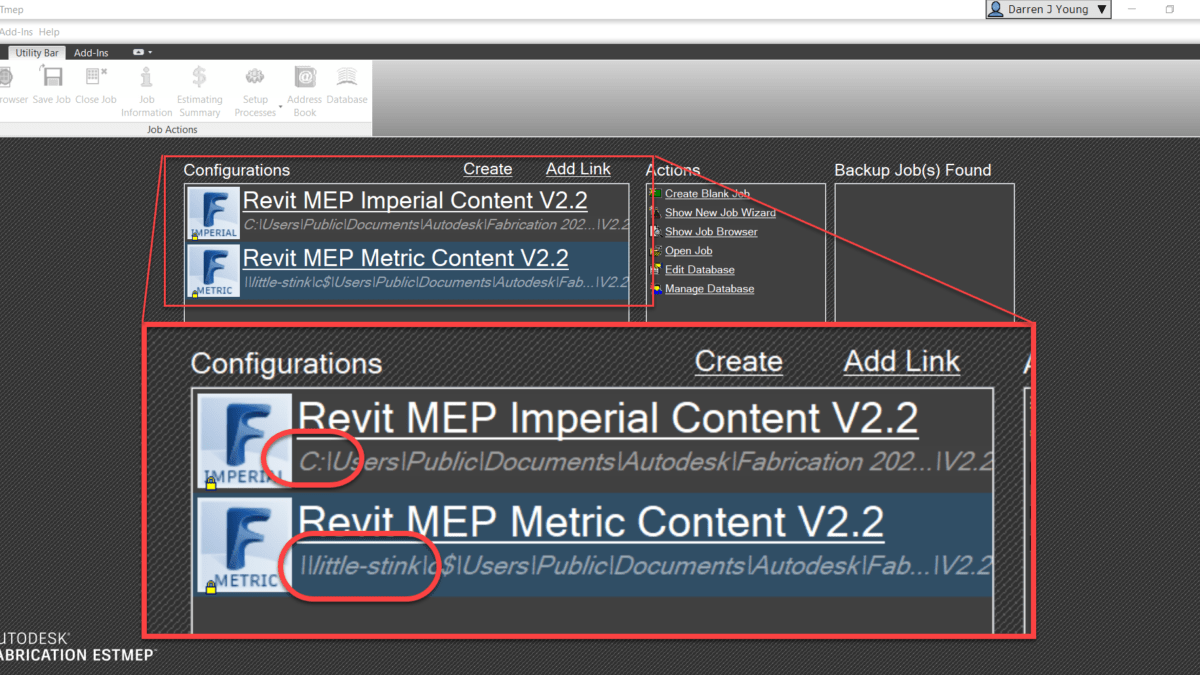
If you use UNC pathing to get to your Autodesk Fabrication Database, you might find issues when trying to create Profiles if you use them. UNC pathing or (Universal Naming Convention) is where you specify a server and share vs a drive letter. You can see below, the Metric Autodesk Fabrication Configurations is using a UNC path…

When using this configuration, you can create a profile from the File drop down menu in ESTmep and CAMduct or by typing MAPPROFILES in CADmep.

Creating New Profiles

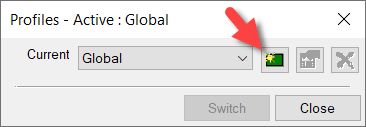
You go to create a new profile by clicking the Green button.

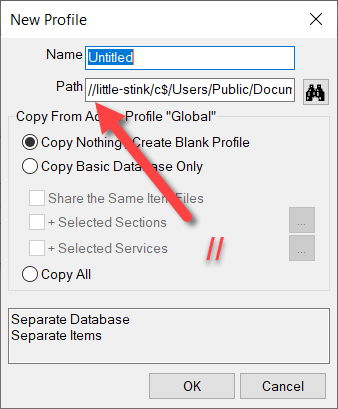
From here, the New Profile dialog starts with the default name “Untitled”. Notice also, the double leading forward slashes before the server name in the UNC path. (Yes, ‘little-stink’ is the server name)

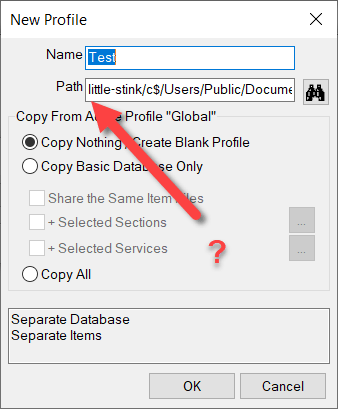
When you start to type a profile name, the leading forward slashes get stripped. This is likely a bug. You can see that in the following image…

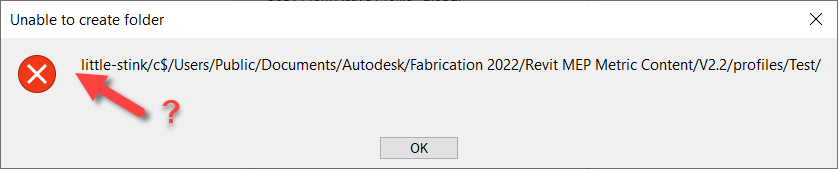
If you click the OK you’ll get an error that the profile can’t create the required folder.

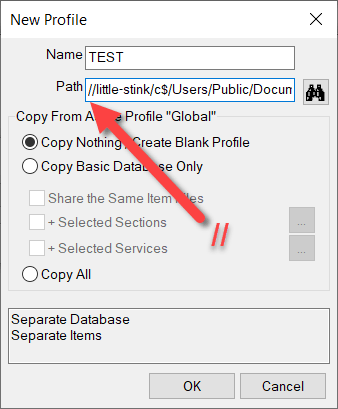
However, the fix is easy. If you just add the leading forward slashes again, you” be able to create the profile.


It may be easier to see from a video. You can watch the process here…

CAMduct Machine Setup – Axis & Orgin

One of the things that can make machine setup difficult in CAMduct is setting up the coordinate system. This coordinate system must reflect the actual configuration of the machine. Some machines can be reconfigured to swap the axes or set the origin to any corner. This lets you configure the machine to match the software. Others can’t be reconfigured and require you to configure the software to the machine.

It doesn’t really matter where the origin is on the machine, just as long as the configuration in CAMduct matches. Matching the machine isn’t difficult, just as long as you understand what’s happening.

Default Origin and Axis Orientation

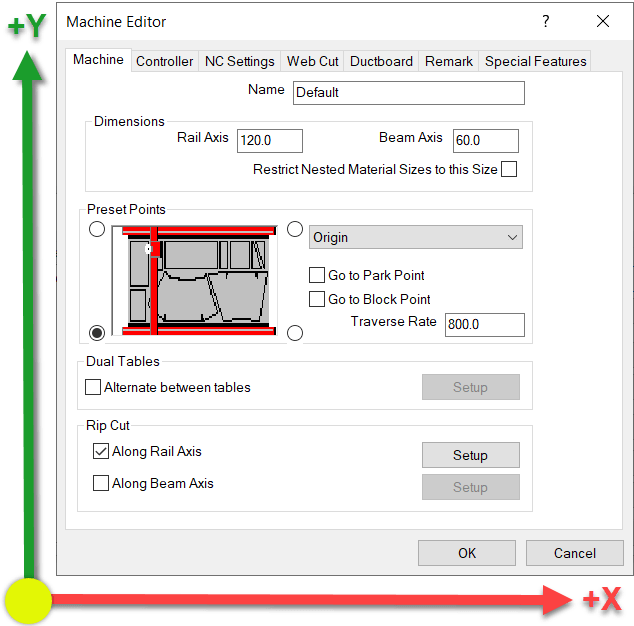
In the Machine Setup Dialog, the default Origin is in the lower left. Take a look at the settings and note the X-Axis and Y-Axis directions.

From this configuration, here’s a simulation of the code that’s generated.

If this configuration doesn’t work for your machine, it typically means the machine has a different origin and/or Axis configuration.

Coordinates Rotated 90 Degrees / X-Axis & Y-Axis Swapped

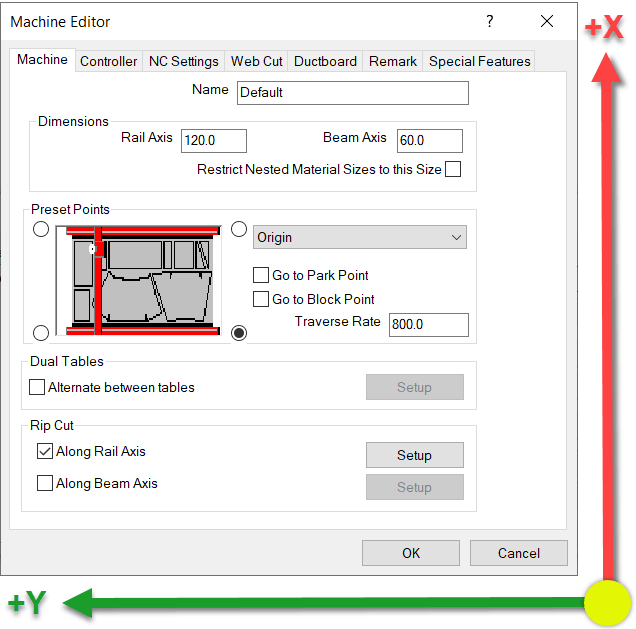
This next configuration rotates the coordinates which results of the X-Axis and Y-Axis being swapped. It also looks like the Origin location changes given the picture, but that’s not the case. This is why Machine Setup can be confusing. This picture does NOT change the origin location. This will become clear shortly.

With this configuration, you’ve now rotated the Coordinate System. When you look at the Simulation below, you’ll that the origin doesn’t actually move. The sheet is still oriented the same way. Long direction is the Rail and the Short direction is the Beam.

What you’ll notice here when looking at the code, is that the Part is Still oriented in the Lower Left Corner of the sheet. However, the X-Axis and Y-Axis are swapped. Additionally, looking at the code on the right, you’ll see how the Y-Axis goes into Negative coordinates. This also isn’t what most machines want, they typically work in positive coordinates but this is easily fixed which we’ll show a little later.

Coordinates Rotated 180 Degrees / X-Axis & Y-Axis Mirrored

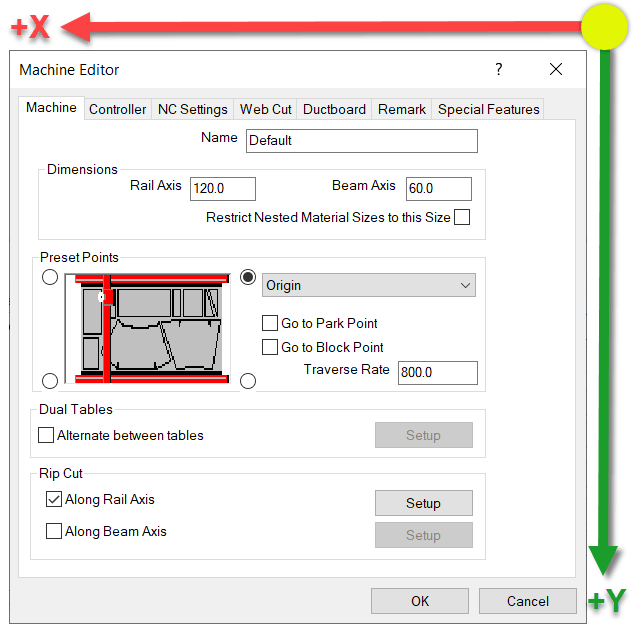
This next configuration sets the X-Axis and Y-Axis so that both are mirrored…or rotated 180 degrees.

Looking at the simulation of this configuration, you’ll see both X & Y Axes are using negative coordinates.

Here the both Axes are in negative coordinates and the Part is still located in the lower left of the sheet. Again, not what a machine wants typically, but easily fixed and covered in a little bit.

Coordinates Rotated 270 Degrees / X-Axis & Y-Axis Reversed

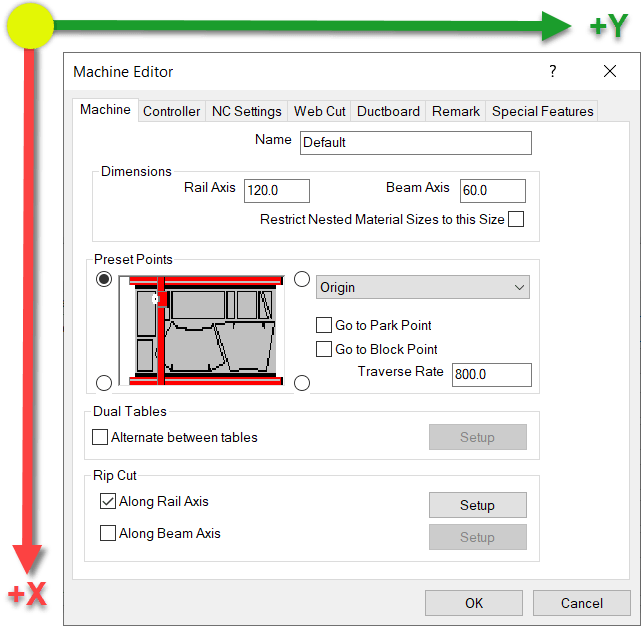
Here’s the last configuration. Again notice which way the Axes are oriented.

In this next configuration, the X-Axis and Y-Axis are reversed like before. But this time, the X-Axis is in negative coordinates where as the Y-Axis is in positive coordinates.

Fixing Negative Coordinates

What makes this hard, is that the setting in the dialog makes you think you’re moving the origin of the code. You are not. You’re merely rotating the coordinate system. This is critical when using a machine tool like a Lockformer or Vulcan that uses Trimble’s TookShop controller (formerly called Vulcan). Those are a couple of the most common machines where the X & Y Axis are reversed.

When you look at the simulations, the sheet is still oriented in the same location and the part starts in the same location on the sheet.

You can look at the configuration and see that the Rail is set to the long direction and the Beam is set to the Short setting. Remember this….it’ll be important in just a bit.

For this example, we’ll again use the 90 Degree rotated configuration (our second example) where the X & Y are reversed and the Y-Axis coordinates are negative. You can see in the code, that the Y-Axis is the LONG sheet dimension due to the rip cut along the Rail that’s cut at the end of the program.

Because the Rail Rip Cut starts at Y=0.0 and goes to Y-120.0, you can see that the Origin is still on the left side of the sheet not the right as the configuration screen suggests. Here’s a reminder of the Axis directions…

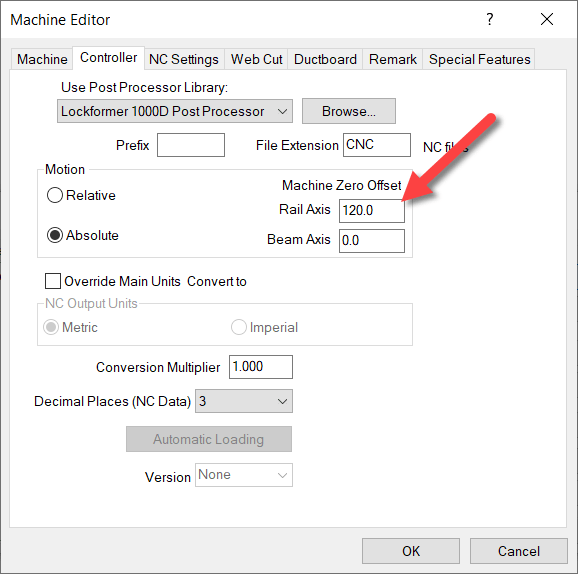
So if cutting the Rip Cut on the sheet from Left to Right for 120 units means the coordinates go negative, it’s clear the Origin is on the left. To make those coordinates go positive, you need to shift the Origin to the right on the Beam (Y-Axis). You can do this on the Controller tab and entering the shift amount for the Rail.

How, when you run a simulation on this setup, you’ll see the Y-Axis is still the long sheet direction, but they’re all positive coordinates.

Notice on the simulation that the part is STILL on the left side of the sheet and because we shifted the Origin to the right side the Rip cut along the Rail (long side) goes from Y=120.0 to Y=0.0.

You’ve now successfully swapped the X&Y Axis and corrected the coordinates to they’re all in positive units. From here, you can go back and finish configuring all your other preferences like where the parts get nested on the sheet, starting cut location, etc.

Fabrication 2022.0.1 Update Released

Update: 2022.09.04

It’s recommended NOT to install this update for CAMduct or ESTmep. Installing the 2022.0.1 Update will prevent access to the Projects folder. CADmep does not appear to have issues with this update.

Thanks to Chris Nash of William R. Nash Company for reporting this issue on the XtraCAD.Com forums.

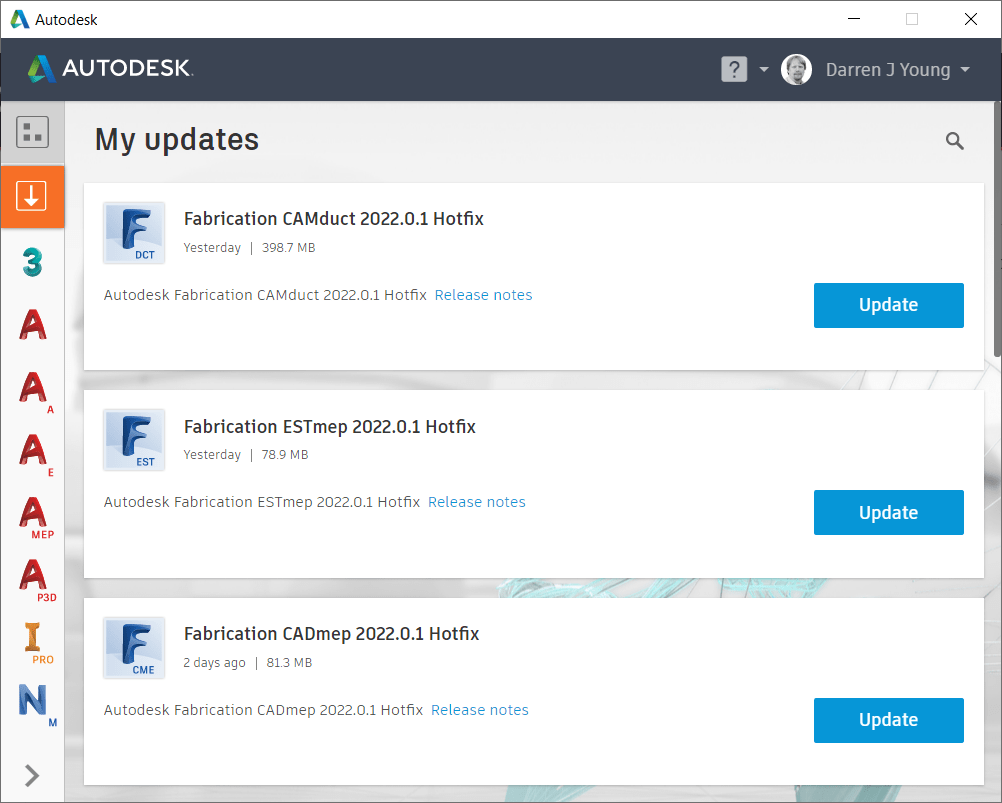
It’s been a long time, but Autodesk finally released an update to Autodesk Fabrication. 2022.0.1 Update was released recently and contains several fixes for 2022 versions of CADmep, CAMduct and ESTmep.

Install from the Autodesk Desktop App or download from your Autodesk Account portal (https://manage.autodesk.com)

Autodesk Fabrication: Best Practice #14

Eliminate All Broken Service ITMโ€™s

Your services should not have broken links to ITMโ€™s. Not only is it sloppy database management, it can slow performance of your database.

Use the Path Repair Tool to find (and fix) broken links in your services.

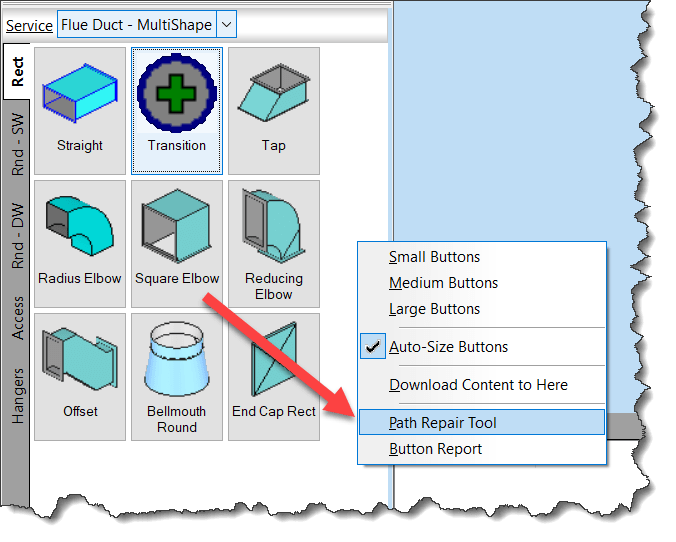
Right-Click and empty area of your Service Palette and select Path Repair Tool.

When you run the Path Repair Tool you’ll be asked to select a mapping file. You can click cancel and the tool will continue on. When it’s done, you’ll have a list of broken paths copied to the Windows Clipboard that you can paste into a file.

From this file, you can then create a mapping file. The mapping file is merely a text file in the format….

OLD PATH/NAME,NEW PATH/NAME

So the data you paste from the clipboard is good starting point, it lists all the broken paths. There may be duplicate paths listed if the path is used in multiple service templates. It’s ok to remove the duplicates.

Simply ass a comma after the broken path name and enter the new, corrected path. Once done, you can save the file and use it when you run Path Repair Tool again. It’ll then go and fix all those broken paths.

NOTE: This repair technique does NOT work if you have commas in your folder or file names. (See Best Practice #11)

Autodesk Fabrication COD Object Model

I’ve added graphics to better illustrate the Autodesk Fabrication Object Model for COD Scripting,

If you write COD scripts for CADmep, ESTmep or CAMduct, this can help you better understand how the various properties and objects are structured when you write your code.

If you want to learn more about Fabrication COD Scripting and how to use these resources, register for MEP Force 2021 and look for my Fabrication Scripting sessions.

You can find links with the other Fabrication COD Language Reference items here…

Fabrication COD Scripting Language Reference

Individual Object Models can be directly accessed here…

There’s also a link to a printable PDF of the Object Models….

Fabrication COD Script Library – Updated

If you’ve not downloaded the Autodesk Fabrication Script Libraries lately, you might want to grab an updated copy. There’s been several updates over the last month. Here’s what’s changed…

  • Damper Rotation Property (undocumented) has been added to all Debug, Job and Library scripts. Support for this property was added in 2017 but never documented. It’s there to support the rotation of Dampers on Fabrication Parts in Revit. It should be noted, that this value is Added to the Angle property of the assigned damper. As such, it acts as an Adjust and not an Override. e.g. Damper w/Angle of 90 + Rotation Property in the ITM of 90 results in a damper rotated 180 degrees.
  • Stiffener Group Property added to the Autodesk Fabrication 2022.0 and later versions of the Debug, Job and Library scripts.
  • Airturn Group Property added to the Autodesk Fabrication 2022.0 and later versions of the Debug, Job and Library scripts.
  • Splitter Group Property added to the Autodesk Fabrication 2022.0 and later versions of the Debug, Job and Library scripts.
  • Insulation StatusLock Property added but listed as “Unavailable” as it stopped working in 2017. Added in the hopes it gets fixed in future versions.
  • StructureType Property added to the Autodesk Fabrication 2022.0 and later versions of the Debug, Job and Library scripts. Property was “Write Only” in 2021 and prior versions so was unable to display in prior versions.
  • Product List HasCustomData Property has been added to all Debug, Job and Library scripts.
  • Product List HasFlow Property has been added to all Debug, Job and Library scripts.
  • Item PCFSKey Property has been added to all Debug, Job and Library scripts.
  • Item CostByLength Property removed from Material Debug scripts (never really belonged there).

You can find the updated scripts here….Script Library.

New Properties are documented here…Item Property Reference.

Autodesk Fabrication 2022 Updates

Autodesk Fabrication 2022 marks a decade that I’ve been updating various documentation for the program. As usual, in recent years not a lot has changed but there are a few changes. Here’s a review of the changes for the data I track…

Script Library Updated / Enhanced

COD Script Library was updated for JOB and LIBRARY Scripts. You can download them for free here. Here’s a summary of changes.


Script Consolidation

In the past, there were 69 to 75 COD Scripts to export all the various properties to separate TXT files. Properties that have multiple entries per ITM like Connectors or Seams are still exported to separate files because the data columns don’t line up between them and there are multiple lines per ITM.

All other properties where it’s a single property per ITM like Spool or Material have all been consolidated to a single script and single TXT file. The WriteAllMiscProperties(Job).cod and WriteAllMiscProperties(Library).cod scripts are where you can extract all other properties so no matter what combination of properties you want, there’s less data files to sort through or scripts to run.


Improved Script Properties Display

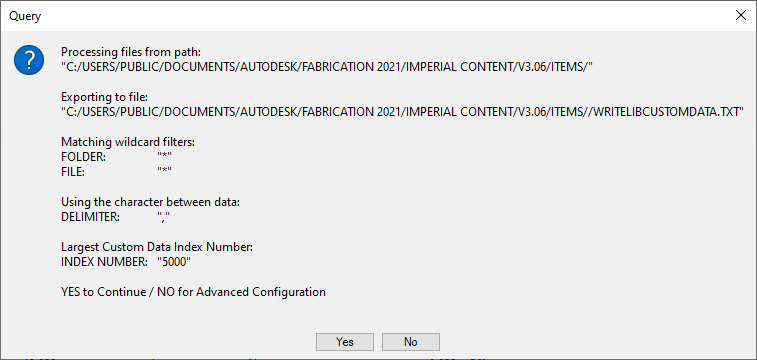
The properties scripts were displayed script settings before running the script. They still are but additional properties are displayed where appropriate along with some additional properties the scripts now support (both covered later). In addition to the additional items, you’ll note that clicking the No button no longer cancels the script. Instead, clicking No takes you to the Advanced Configuration (also covered later) where you can change some of those settings.


Advanced Configuration – Scan Folder (LIBRARY Scripts Only)

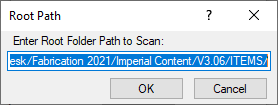
By default, the script looks to the root of your ITM Library folder of your database. This value can now be changed to point anywhere else. You may want to point to a folder of ITM’s outside your Configuration if that’s where you store your ITM’s. You can also scan further down the folder structure so you can perhaps skip exporting Duct ITMs but instead scan and export Piping ITMs.

Here’s what this looks like. Note that the path may use forward slashes ( / ). You can however paste a new path that uses backslashes ( \ ) and it should still work. There’s no option in COD Scripts to allow you to browse to a folder so make sure you type or copy/paste carefully.


Advanced Configuration – Export File (JOB and LIBRARY Scripts)

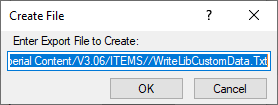
Similar to the Scan folder configuration, you can now also change the default export file name and location. Specifications for specifying paths are the same as above.

Also note that while you CAN specify “CSV” as the file extension, I recommend using “TXT“. When Excel sees a CSV file, it just opens it without giving you the ability to specify how data is interpreted. Using a “TXT” extension makes Excel prompt you for “How” the file should be read like which character is used as the delimiter or defining which columns are Text vs other data types.

Some numerical data or values can be interpreted incorrectly by Excel if you don’t explicitly tell Excel to treat them like Text. A good example of this is the size 1-1/2″ or 1-1/4″. Excel thinks these are dates and will display them as 1/1/2012 or 1/1/2014 respectively if you don’t explicitly tell Excel to treat them as Text. Using that “TXT” extension on the export file is a safe guard against this issue.

A lot more detail that you likely wanted but hopefully it’s helpful, here’s what that looks like….

Note you may see an extra slash character between the path and file name. This is can happen if your MAP.INI (Edit Configuration Utility) includes or doesn’t include an ending slash. I may add code to clean this up later but COD Scripts and Fabrication seem tolerant of this extra slash so no need to worry about it (or edit it out if you like).


Advanced Configuration – Folder/Path Wildcard (LIBRARY Scripts Only)

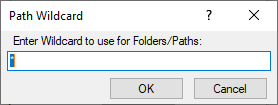
Instead of editing the folder you’re going to scan, alternatively you can specify a wildcard to use to limit which folders to export data from. As an example, you could specify *WELDBEND* and properties will only be extracted for ITM’s within folders containing the name “Weldbend”. Wildcard specification is not CaSe SeNsItIvE. By default, the wildcard is ( * ) to extract from all folders. Here’s what that looks like…


Advanced Configuration – File Wildcard (LIBRARY Scripts Only)

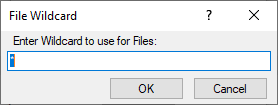
Just like the Folder/Path Wildcard specification, you can specify a wildcard for which ITM files to extract properties from. As an example, you could enter *PIPE* and you would export only from ITM files that contained the work “Pipe”. Again, the wildcard is not CaSe SeNsItIvE. You can use both Folder and File wildcards to very narrowly specify your data export scope. Default wildcard is an ( * ) to extract from all ITM files. Here’s what that looks like…


Advanced Configuration – Delimiter (JOB and LIBRARY Scripts)

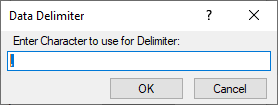
Data exports by default use a Comma ( , ) to create a Comma Separated Value file. If your Fabrication Database uses commas in folder names or ITM file names this can cause data fields to shift in Excel when opening the export file. If this is the case for you, you can specify a different character to use to separate the data fields in the export file. The Pipe ( | ) character is always a good “rarely used” character for this purpose.

As a side note, it’s not a good practice to have commas in folder or file names. You can read more about that here. This option is really here in case you’re stuck with commas and haven’t fixed them yet.


Advanced Configuration – Max Custom Data Index (Only Scripts that export Custom Data)

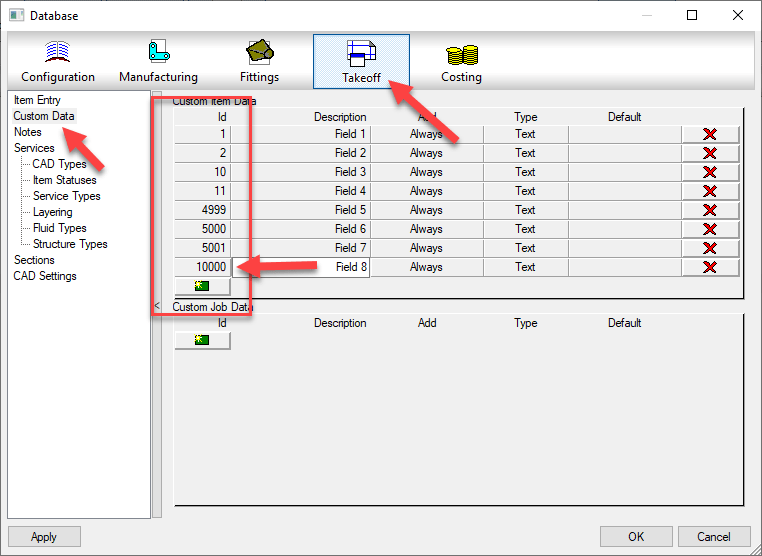
Only used for scripts that export Custom Data, you can specify the maximum Custom Index value. Unfortunately, COD scripts have no ability to determine how many custom data entries you have or which index numbers are used without jumping through some hoops. To work around this, you need to specify the maximum Custom Data Index value. The script will then loop through all those numbers and find which ones contain values and remembers them. It then exports only those custom index values so that the script runs efficiency.

By default the script uses 5000 as the maximum index number. But as you can see from the below example, the maximum index number is 10000 so we need to specify that. We look at all 10000 possibilities (it goes fairly quick) and takes note that there’s only 8 indices used and then extracts only those 8 from the ITM’s. In the past, the script would loop through all 10000 for each ITM really slowing things down. Now, even if your largest number is 6 or 7 digits (not recommended) the script will still be fairly quick.

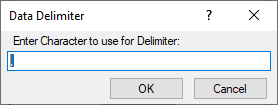
Here’s what that Delimiter Character configuration option looks like…


Summary

In the past, if you didn’t like the export files names, where they went, or wanted to change the scope of which files or folders you extract data from, you could have always changed the COD script code yourself. You now shouldn’t have to. Hopefully this makes running these scripts a little more flexible and user friendly.