TigerStop Setup for Autodesk Fabrication
Setting up Autodesk Fabrication to communicate with a TigerStop isn’t difficult. But there really isn’t any good resources that explain how to do it. I’ve explained it multiple times to multiple people so I thought it might make sense to document it here.
This following instructions are not needed of you’re using a system like GTP Stratus or MSuite (formerly FabPro1) as they have their own process for interfacing with TigerStops. However, you can easily run a TigerStop from Autodesk Fabrication without buying any additional software. All you need is a TigerStop and Autodesk Fabrication.
Step 1 – Install TigerLink
From Autodesk Fabrication, you’ll be exporting CSV files. TigerLink is a free software from TigerStop that will take those CSV files and break them down and reformat them into files your Tigerstop software can use.
You can get TigerLink software from TigerStop.Com. Go there and search for “TigerLink” and download the latest version (6.x used in this documentation).
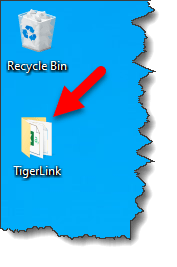
Once installed, you’ll notice a TigerLink folder on your desktop…
And an icon in your system tray…
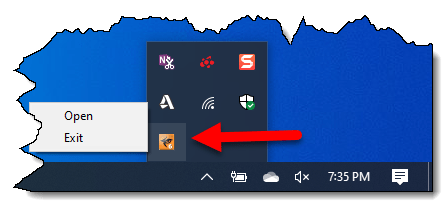
Right-Click on the TigerLink icon in your system tray and select Open. This will display the following dialog. TigerLink can do several things but we only want it for one purpose. You’ll want to ensure the Auto Connect toggle is Unchecked so that TigerLink does not look for a TigerStop machine.
Be default, TigerLink runs automatically when you start your system and clearing this toggle will prevent it from warning you that there was no machine found. If you don’t want it to run automatically, remove the shortcut it places in the Windows Startup folder.
For now, close the dialog. Then, Right-Click on the system tray icon again and choose Exit. We don’t want the software running when we do our initial configuration a little later.
Step 2 – Creating Your Fabrication Export (Items)
For Tigerstop to work, you need to export data from Autodesk Fabrication. Tigerstops need a minimum of 2 pieces of information. One is a length (decimal format) , the other a quantity. That’s it. However in practice, you’ll want a little more information.
Cutting Pipe is one of the primary uses for TigerStop. So we need to configure a CSV export to do this. But let’s also plan the data we want. We may want to export all types of pipe and sizes in a single export. But you can’t cut mixed materials or sizes from the same stock. So we’ll need material and size in our export so TigerLink can use those fields to break down the data. Let’s breakdown our list of data fields here that we’ll want to send to the TigerStop….
| Number | Property | Purpose |
| 0 | Item CID | This won’t be output but is used in the Report to filter the Exports to CID 2041 (pipe) only. |
| 1 | Item Quantity | Required by TigerStop |
| 2 | Item Centerline Lenth | Required by TigerStop. Must be decimal. |
| 3 | Job File Name | May be helpful in the TigerTouch display for the operator |
| 4 | Item Number | We want to know the piece number for a label |
| 5 | Item Description | This typically holds the “Size” of pipe in product listed ITMs. e.g. 1/2″, 3/4″, etc. TigerLink will use this data so files are separated by “Size”. We’ll also use it on the label. |
| 6 | Item Centerline Length | We’ll include this again formatted in Ft-Inch for the shop guys who may want that on the labels |
| 7 | Item Material Name | Tigerlink will use this data so files are also separated by material name. .e.g. Copper vs PVC vs Cast Iron, etc. |
| 8 | Item Spool Name | We’ll want this on the label too. |
Use the CSVEXPORT command in CADmep to create your export report. When done, your report configuration might look like the following….
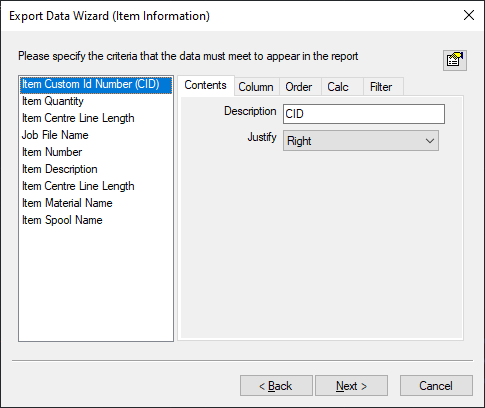
When your report is done, the resulting data might look like the following. Notice how all the sizes and materials are mixed together. This is what TigerLink will fix for us.
Qty,Length,Job Name,Item No,Description,Length,Material,Spool
1,39.146,Sample Data Export,12,4'',3'-3 1/8",Pipe Systems: Cast Iron,
1,40.421,Sample Data Export,12,4'',3'-4 3/8",Pipe Systems: Cast Iron,
1,48.250,Sample Data Export,12,4'',4'-0 1/4",Pipe Systems: Cast Iron,
1,11.835,Sample Data Export,12,4'',11 7/8",Pipe Systems: Cast Iron,
1,42.242,Sample Data Export,10,2'',3'-6 1/4",Pipe Systems: Cast Iron,
1,21.542,Sample Data Export,10,2'',1'-9 1/2",Pipe Systems: Cast Iron,
1,18.024,Sample Data Export,8,2'',1'-6",Pipe Systems: Cast Iron,
1,35.939,Sample Data Export,6,3'',3'-0",Pipe Systems: PVC,
1,22.101,Sample Data Export,6,3'',1'-10 1/8",Pipe Systems: PVC,
1,22.101,Sample Data Export,6,3'',1'-10 1/8",Pipe Systems: PVC,
1,54.987,Sample Data Export,6,2'',4'-7",Pipe Systems: PVC,
1,22.101,Sample Data Export,6,2'',1'-10 1/8",Pipe Systems: PVC,
1,22.101,Sample Data Export,6,2'',1'-10 1/8",Pipe Systems: PVC,
1,16.664,Sample Data Export,6,2'',1'-4 5/8",Pipe Systems: PVC,
1,17.845,Sample Data Export,4,2-1/2'',1'-5 7/8",Pipe Systems: Carbon Steel,
1,14.678,Sample Data Export,4,2-1/2'',1'-2 5/8",Pipe Systems: Carbon Steel,
1,33.388,Sample Data Export,4,2-1/2'',2'-9 3/8",Pipe Systems: Carbon Steel,
1,38.282,Sample Data Export,4,2-1/2'',3'-2 1/4",Pipe Systems: Carbon Steel,
1,12.919,Sample Data Export,2,3/4'',1'-0 7/8",Pipe Systems: Copper,
1,13.923,Sample Data Export,2,3/4'',1'-1 7/8",Pipe Systems: Copper,
1,7.293,Sample Data Export,2,3/4'',7 1/4",Pipe Systems: Copper,
1,10.252,Sample Data Export,2,1/2'',10 1/4",Pipe Systems: Copper,
1,10.252,Sample Data Export,2,1/2'',10 1/4",Pipe Systems: Copper,
1,10.252,Sample Data Export,2,1/2'',10 1/4",Pipe Systems: Copper,
1,19.558,Sample Data Export,2,1/2'',1'-7 1/2",Pipe Systems: Copper,
1,19.558,Sample Data Export,2,1/2'',1'-7 1/2",Pipe Systems: Copper,
Step 3 – Configure TigerLink via XML
TigerLink uses the file “C:\Users\<user>\AppData\Roaming\TigerLink6\CutListLinks.xml” to understand how to process exports. We’ll edit this file in Notepad. If you’re familiar with editing XML, it’ll be easy and you may want to use an XML editor however Notepad will be just fine.
I highly recommend making a backup copy of the CutListLinks.xml file in the event you ever need to start over. If you recall the dialog for TigerLink, it listed a number of Export formats in the left column. Each export format are enclosed between a set of XML tags named <LinkType> & </LinkType>.
I’m never going to use any of those formats so I delete all of them from CutlistLink.xml except a single entry which we’ll edit for our purposes. Take some time to study the file before editing. It’s not difficult to see what’s going on with a little close examination.
When we have only one set of <LinkType> & </LinkType> tags, we’re ready to start editing. I’ve highlighted the lines that I edited and/or verified in the following image…
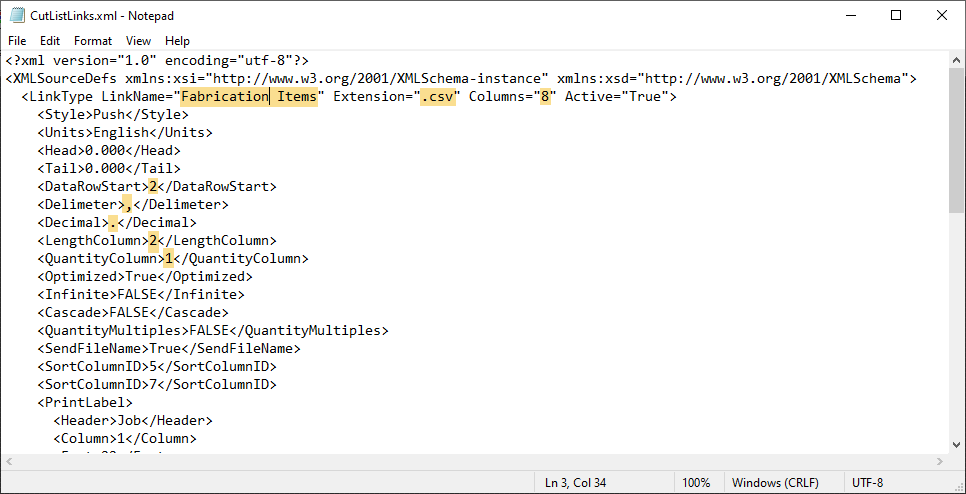
- Edit the Link Name which is the name of the Export configuration that will display in the left column of TigerLink.
- Verify the Extension matches that of the export…CSV in this case.
- As you recall, we have 8 columns of data in our export so use the Columns field configures this.
- The DataRowStart tells TigerLink that the data starts on row 2 as our export has headers. Adjust as your export report requires.
- Delimiter is set to a comma for a CSV but if your data has commas, you may need to use a different character.
- Verify Decimal is set as required. Typically only different in some other countries.
- LengthColumn tells TigerLink which column is the length TigerStop will use to drive the machine.
- QuantityColumn tells TigerLink which column stores the quantity of parts.
At this point, we’ll ignore the other data as it’s easier to set via the TigerLink interface. Save your CutListLinks.xlm file and restart TigerLink.
Step 4 – Configure Tigerlink via User Interface
When you restart TigerLink, your version should look similar to the following…
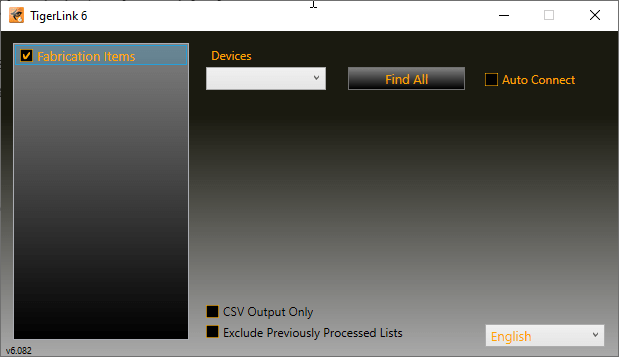
The checkbox next to Fabrication Items tells TigerLink that this Export configuration is active and ready to be used. If you Right-Click on Fabrication Items and select EDIT, you get to the configuration user interface as shown below…
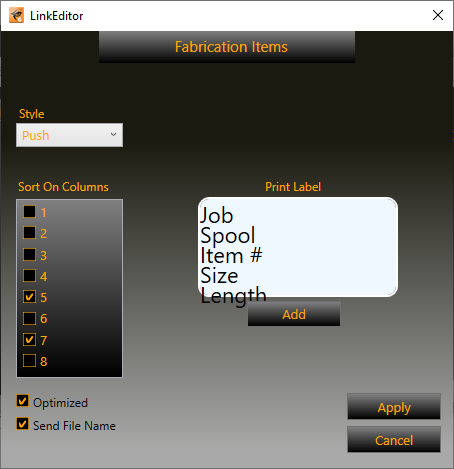
Here, we’ll want to do several things to finalize your configuration.
- Put a check-mark next to Column entries 5 & 7. These columns hold the Size (Item description) and Material Name. This tells TigerLink that for this export, anytime there’s a new Size and/or material, it belongs in a separate file.
- Unless you’re doing something unique, Style should be set to Push
- Optimized tells TigerLink that the material will be optimized for best yield/utilization when nesting.
- Send File Name is not required but can be used to display the file name on the TigerStop system.
- Use the Add button to add data fields to your label. You can add a lot but TigerStop’s label system only works with up to 5 lines. Drag where you want and Right-Click to edit the header, font size and assign to a data column. Thje preview isn’t the most accurate as you can see. My data is off the display but does print properly. You can later go into the CutListLinks.xml file and get a little more fine control over the font size and placement in the <PrintLabel> & </PrintLabel> XML tags.
You’re now done configuring TigerLink and Fabrication. The only thing left is to process data from an export.
Step 5 – Process Fabrication Exports
To process data from an export, take a file with Fabrication piping in it and run the CSVEXPORT command. Once you;ve run the report you created earlier, look for the the CSV file and copy or move it to the TigerLink folder on the Desktop. Once the file is in that folder, TigerLink will process the file and break it into separate *.tiger files. One for each Material and Size if pipe.
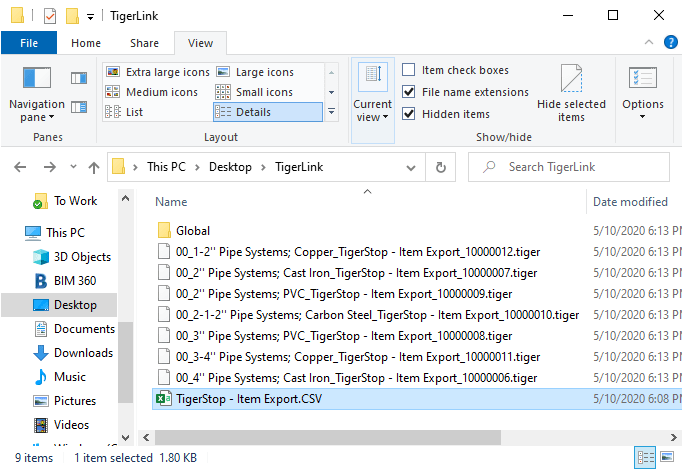
These *.tiger files are what the TigerStop machine will use to cut your pipe.
If your CSV file is not processed into separate files, verify that the TigerLink software is running before you copy your CSV to the Desktop folder. Also make sure that the Fabrication Items entry in the TigerLink interface is selected to make sure it’s active.
The following image shows how your file should look once opened in the TigerTouch interface…
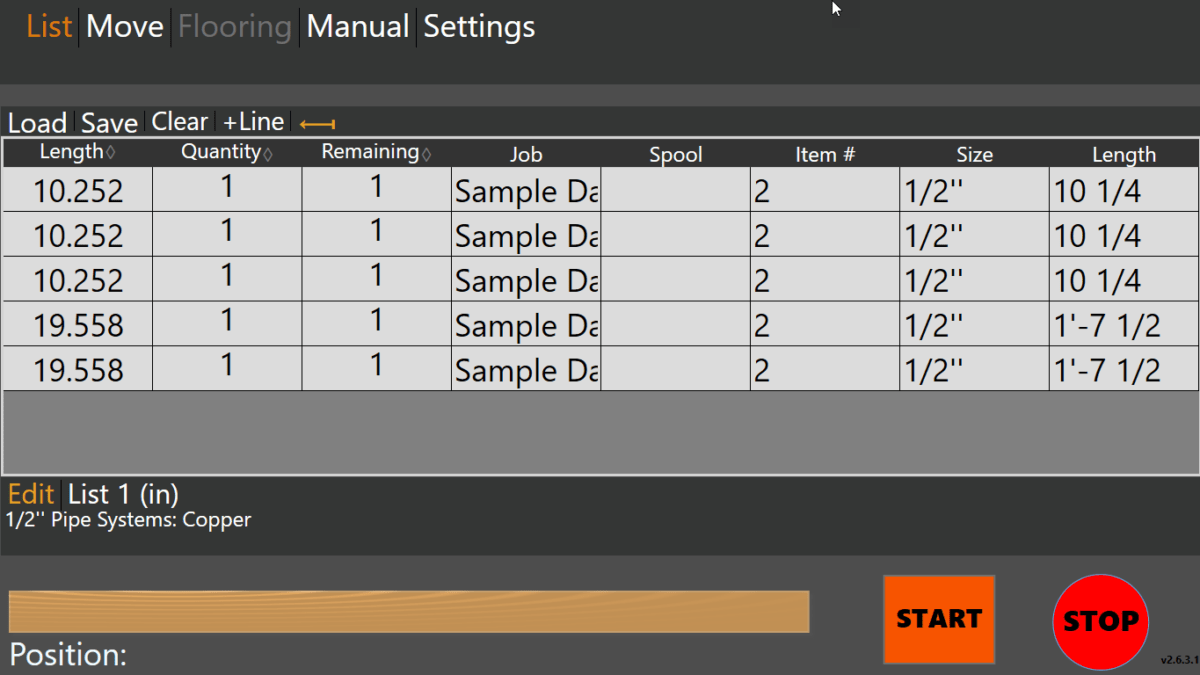
Summary…
Ancillaries can be cut on a TigerStop in a similar way. Use the ANCILLARYEXPORT command to setup your ancillary exports. Using Ancillary Type and Names, you should be able to generate reports for your TigerStop to cut ancillaries.
Because filtering is limited, it may be a little harder to get a single export for all ancillaries. You may find it’s easier to create a report for each ancillary type. As long as all reports for Ancillaries have the same fields and number of columns, you should be able to just add a single “Fabrication Ancillaries” entry to the TightLink’s CutListLinks.XML file to process any of them.
For a copy of the CutListLinks.xml file and CSV Export report used in this example, you can download them from this file…